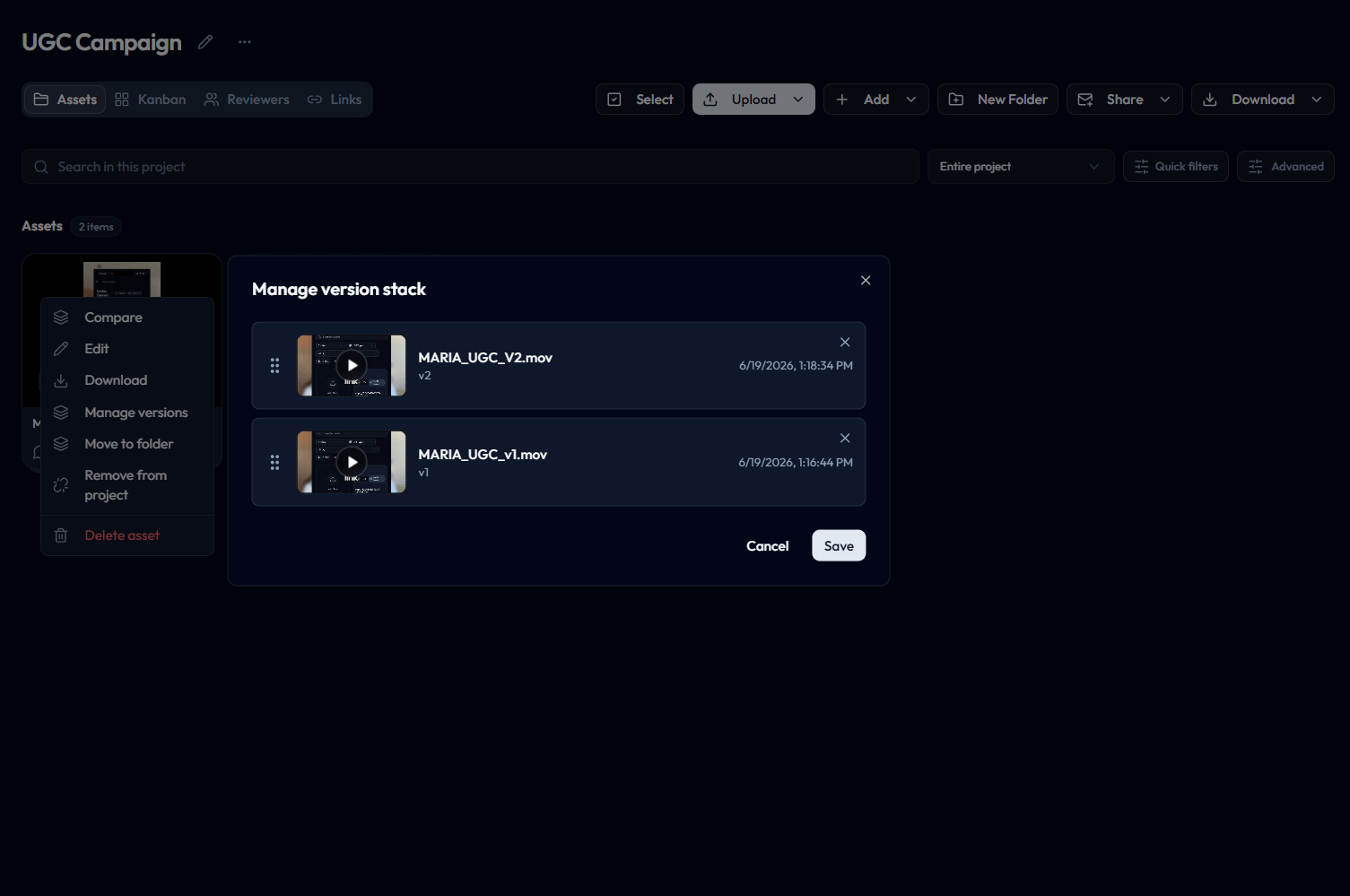
Manage asset version stacks, switch between versions, compare two versions side by side, and keep comments tied to the exact revision.
Reloops keeps revisions together as an asset version stack. Each version keeps its own preview, comments, activity, status, uploader, and timestamp, while the stack gives your team one place to track the full review history.
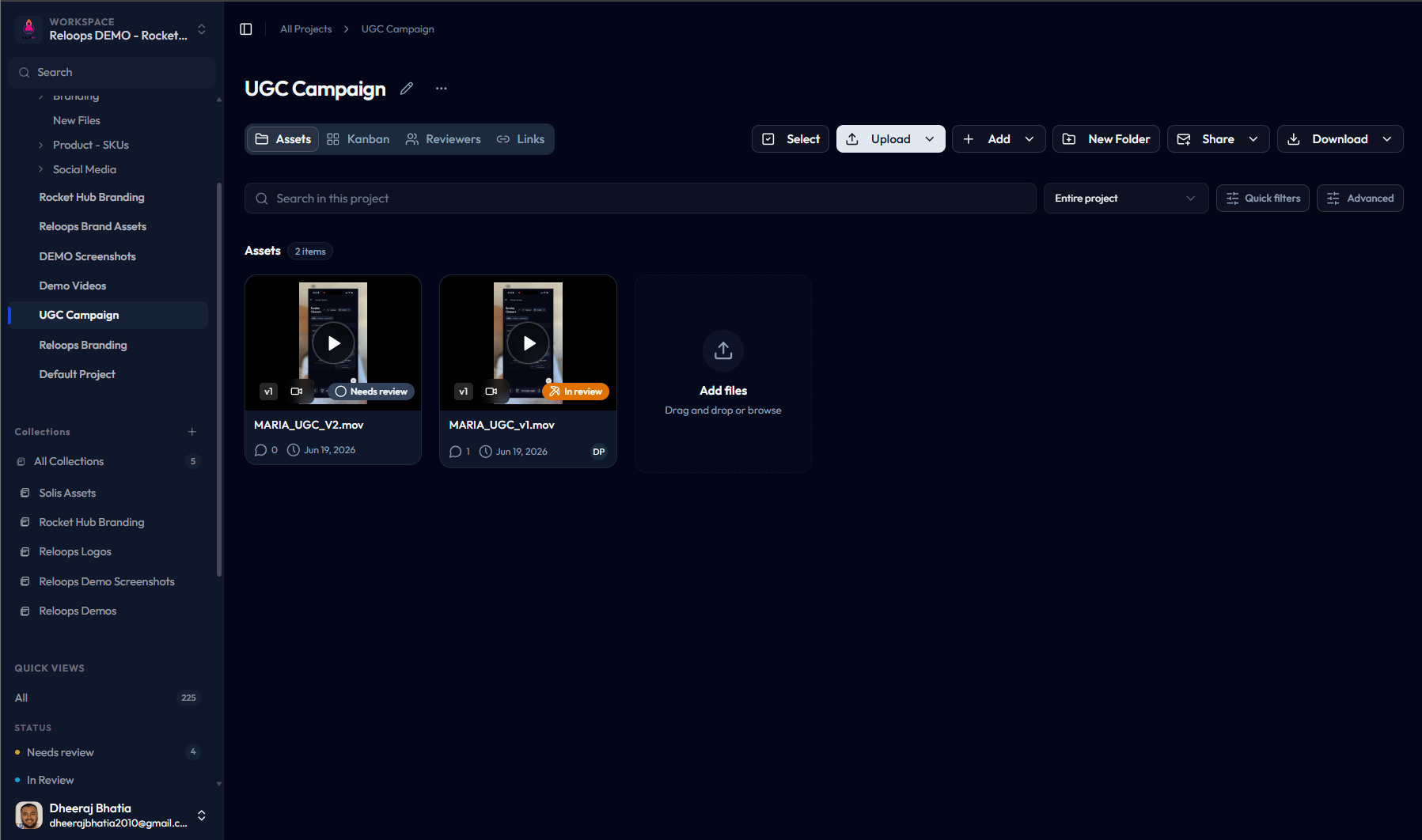
Before stacking, revised uploads appear as separate asset cards in the project Assets view.
Use versions when a new file is the next revision of the same asset, not a separate deliverable.
1
Upload the new revision
Upload the revised file into the same project or folder as the original asset. Wait for the upload to fully finish before stacking it.
2
Drag it onto the original asset
In the project Assets view, drag the new asset card onto the original asset card. Reloops attaches the new file to that asset’s version stack and assigns the next version number.
3
Open the stacked asset
Open the asset after stacking. The newest version appears first, and the version pill beside the asset name shows the active version number.
Drag the revised asset card onto the original asset card to create one version stack.
For the cleanest review and compare experience, keep a version stack within the same media family, such as image revisions with image revisions or video revisions with video revisions. If you are uploading through the API or CLI, pass the existing asset as the parent so the new upload lands in the same version chain immediately. See Reloops CLI and Public API for developer workflows.
Open an asset, then click the version pill beside the asset name, such as v2. Pick any version to open that exact revision. Comments and annotations shown in the side panel stay tied to the selected version.If you are reviewing an older version, Reloops warns before you request revisions against it so you do not accidentally send work backward.
Compare mode only appears when an asset has at least two versions. If the asset has one version, the review page shows a disabled v1 pill and asset cards do not show a Compare action.
1
Open from the review page
Open a versioned asset, click the v2 version pill beside the asset name, then select Compare versions at the bottom of the menu.
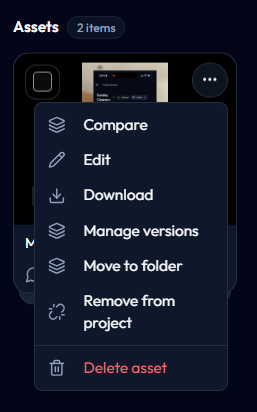
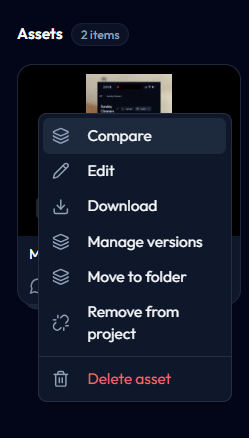
Open the three-dot menu on a multi-version asset card to find Compare and Manage versions.
2
Open from an asset card
In the project Assets view or workspace asset search, hover a multi-version asset card, open the three-dot menu in the top-right corner, then choose Compare.
Choose Compare from the asset card menu to enter side-by-side review.
3
Confirm the compare page loaded
Compare mode opens at /workspace/:workspaceId/projects/:projectId/assets/:parentAssetId/compare for project assets, or /workspace/:workspaceId/assets/:parentAssetId/compare from workspace search.
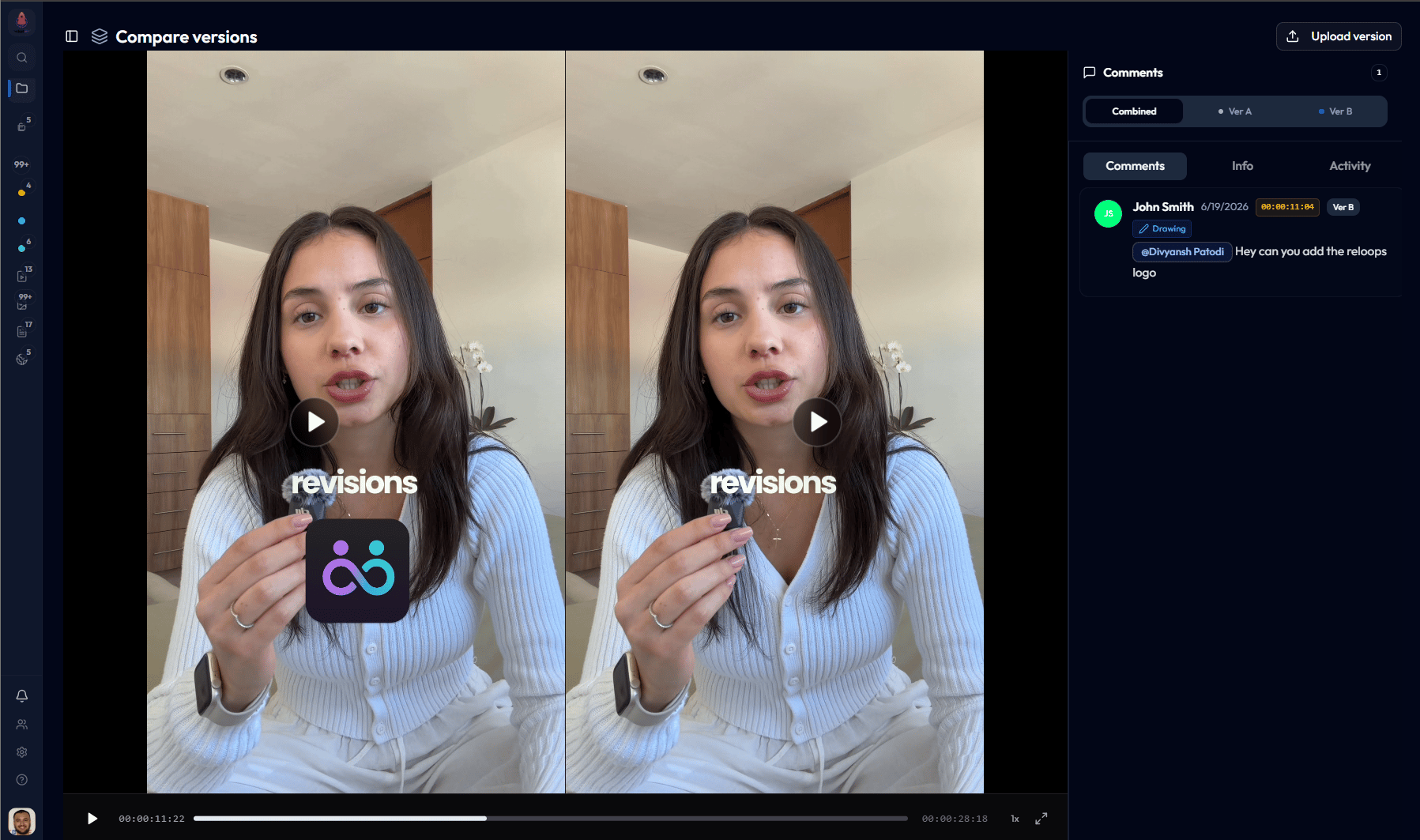
Compare mode shows two versions side by side with version-aware comments.
In compare mode you can:
Select Version A and Version B from dropdowns.
Play video versions side by side.
Compare image versions side by side.
Filter the comment panel to all comments, the left version, or the right version.
Review comments with version labels when both sides are visible.
Use compare mode before approval to confirm requested changes were addressed and that the latest version is the one you intend to approve or share.Compare mode is for versions in the same asset stack. It does not open by selecting two unrelated asset cards.
Asset share links are locked to the version that is open when the link is created. Future uploads do not change what that link shows. To share a newer revision, open that version and create a new share link.