
/share/:token and can view the asset and leave comments without needing a Reloops account or workspace access. Use share links when an external client, stakeholder, or contractor needs to review one specific asset without joining the whole workspace.
Create an asset share link
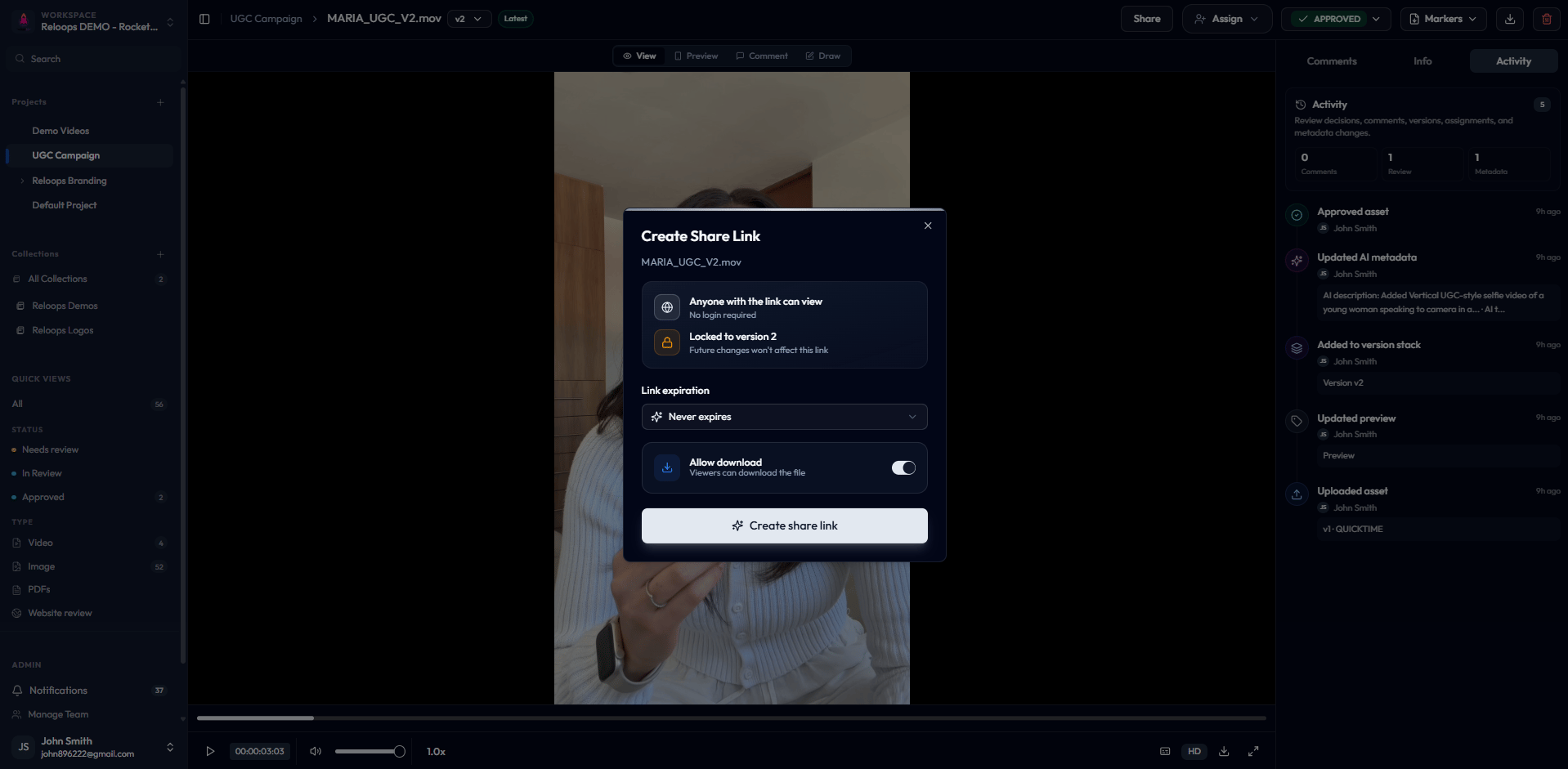
The Create Share Link modal shows the locked version, expiration setting, and download permission.
1
Open the asset
Navigate to the project and open the asset you want to share. Confirm you are viewing the correct version before generating the link.
2
Open the Share modal
Select Share in the asset review toolbar. The Create Share Link modal opens.
3
Configure the link settings
Choose your options before generating the link:
- Link expiration - choose Never expires, 7 days, 30 days, or a custom date
- Allow downloads - enable this if the reviewer is allowed to download the file, or leave it off to keep the asset view-only
4
Generate and copy the link
Click Create Link. Copy the generated URL and send it directly to your reviewer by email, chat, or any other channel.
Asset share links are always locked to the version open when you create the link. Future uploads do not change what the reviewer sees. To share a newer revision, open that version and create a new link.
Checklist before sending
Run through these points before you share the link:- Correct asset and version are open - double-check the version selector before you open Share
- Expiration date is set if access should end after a specific deadline
- Downloads are configured to match what you have agreed with the recipient
- Link is sent only to the intended reviewer - anyone with the URL can open the public share page, so treat the link as you would any shared credential