
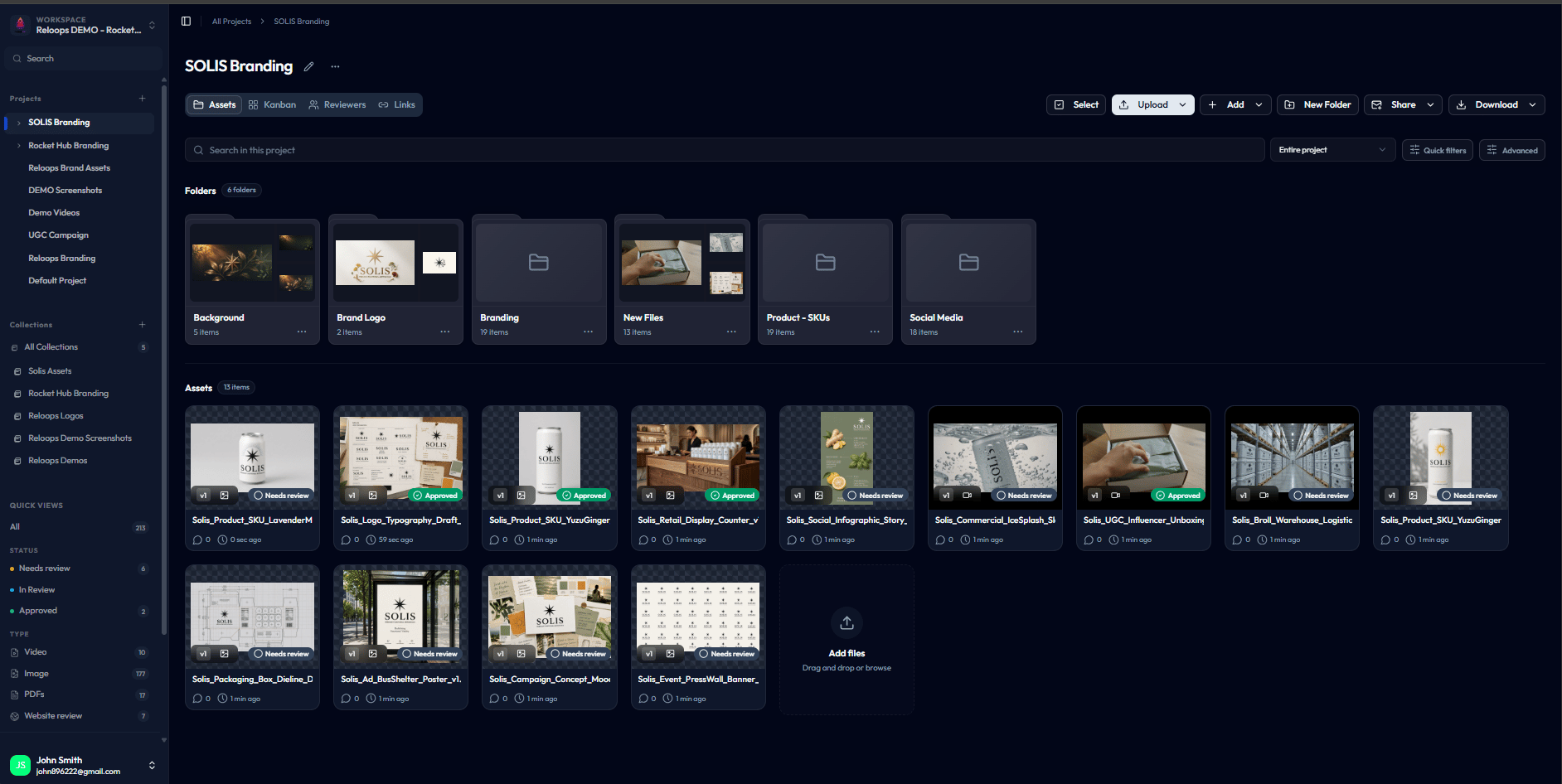
Folders appear above assets in the project Assets view, with nested folder counts and previews.
Creating folders
You can create folders directly inside any project or as nested subfolders.1
Open the project
Navigate to the project from your workspace and land on the Assets view.
2
Click New folder
Use the New folder button (or right-click on empty space and choose New folder).
3
Name the folder
Give it a clear name - team members and reviewers will see this name on share links and in collections.
4
Nest as needed
Open any folder and create more folders inside it. There is no hard limit on nesting depth.
Uploading folders from your computer
Reloops preserves your local folder structure when you upload.- Click Upload in the Assets view.
- Choose Upload Folder instead of Upload Files.
- Select a folder from your device - every subfolder and file inside is uploaded in the same structure.
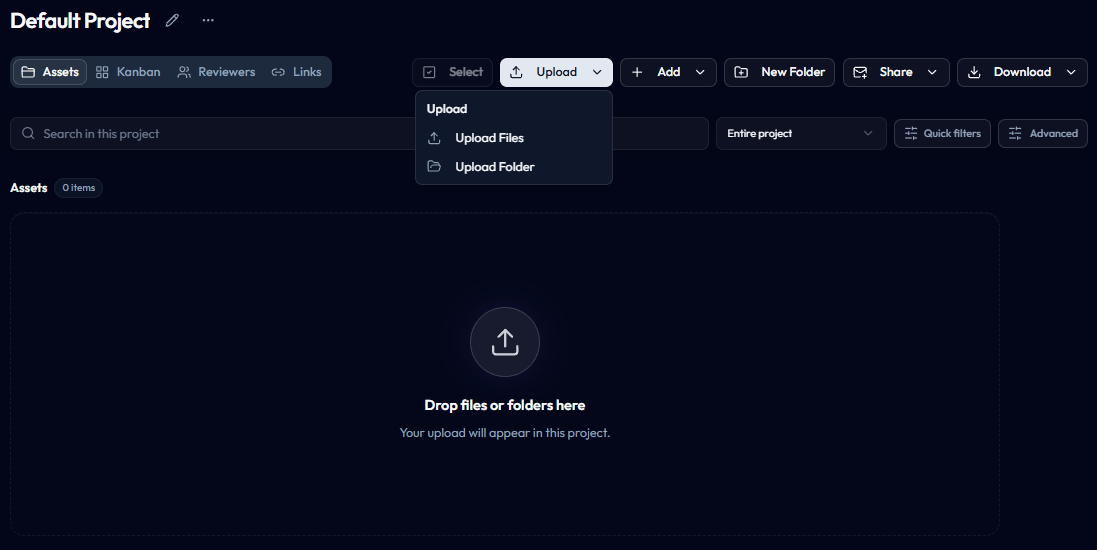
The Upload dropdown menu highlighting the option to select and upload an entire folder hierarchy.
Moving assets between folders
Use Move when an asset or folder belongs somewhere else and you do not need a duplicate.1
Select one or more assets
Click Select, then choose one or more asset stacks or folders.
2
Open the asset menu
Use Move from the selection toolbar, or use Move to folder from an individual asset card menu.
3
Choose Move to
Use the destination picker to choose a project or folder. You can move assets inside the same project or into a different project in the same workspace.
4
Confirm
The selected work moves immediately. Comments, versions, status, AI metadata, and activity history travel with it.
Copying assets to another folder or project
Use Copy to when you need the same asset to live in two places - for example, sending an approved master to a deliverables folder while keeping the original in a working folder.1
Select the assets
Click Select, then choose the asset stack or stacks you want to duplicate.
2
Open Copy to
Choose Copy from the selection toolbar.
3
Pick a destination
Use the folder picker to choose any folder in the current project or another project in the workspace.
4
Confirm
Reloops creates an independent project placement for the selected asset stacks.
Copy is available for asset stacks only. If you select a folder, use Move or download the folder as a ZIP.
Move vs Copy: which one to use
Other folder actions
- Rename - double-click the folder name or use Rename from the More menu.
- Delete - removes the folder and its contents. Deleted assets go to the workspace trash and can be restored.
- Download folder - download the whole folder as a zip from the download menu.
What stays intact when you reorganize
Reloops is built so reorganizing never breaks your work. When you move or rename:- Comments and annotations stay on the asset
- Version history is preserved
- Active share links keep working with the new location
- Review status (Needs review, In review, Approved, or No status) is unchanged
- AI tags and Smart Metadata travel with the file (see AI Tagging)