
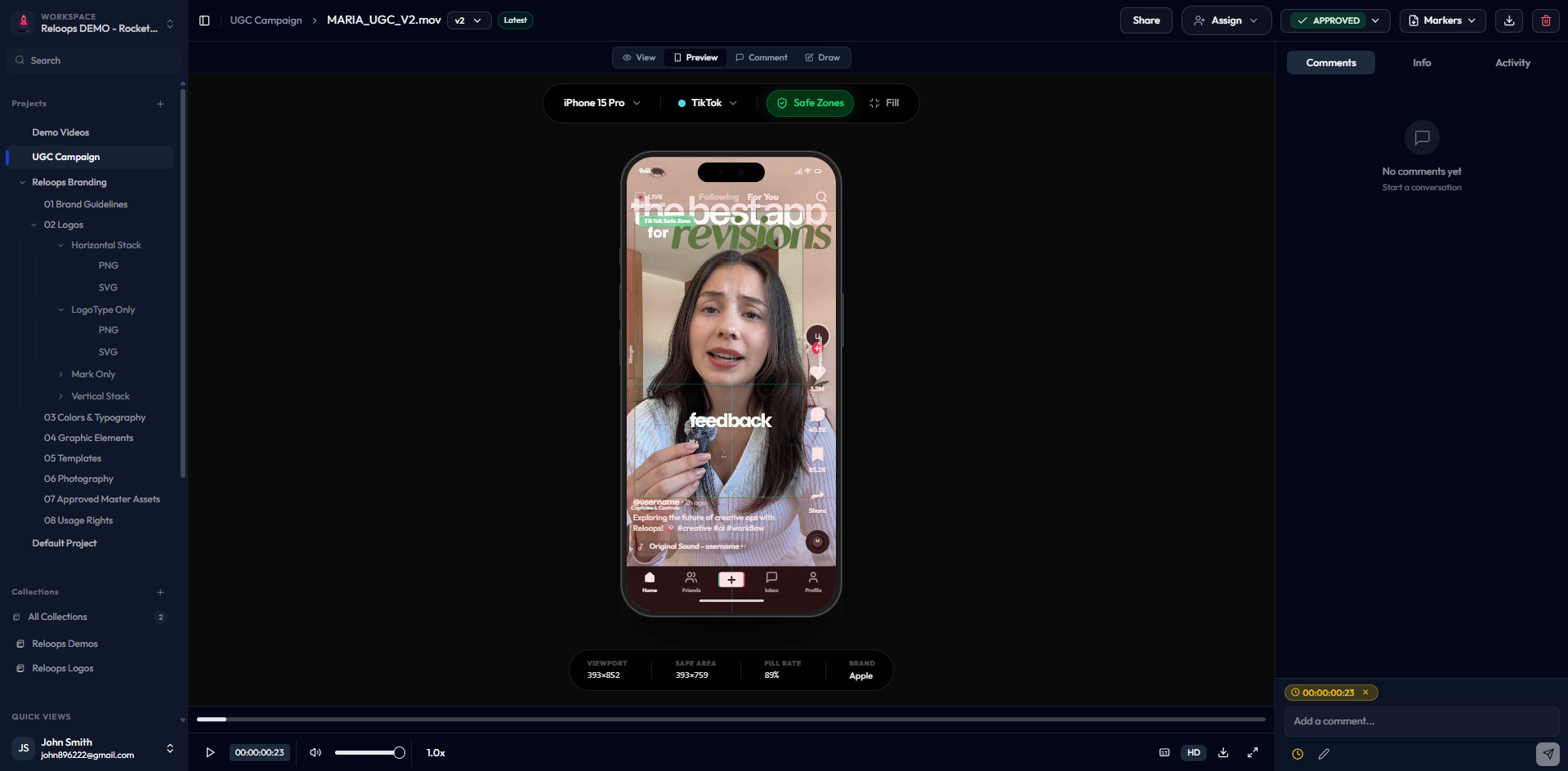
Annotated comments pinned to the preview with safe-zone overlays visible.
Comment types
1
Timestamp comments (single frame)
Timestamp comments are the standard way to leave feedback on a video. Pause the video at the exact moment you want to discuss, then type your comment in the box and submit.The comment is linked to that specific frame. When an editor clicks the comment in the list, the video jumps instantly to that timecode - no searching, no ambiguity about which scene or cut you mean.Use timestamp comments whenever your feedback is tied to a particular moment in the video.
2
Annotations (anchored comments)
Annotations let you point to a specific region on screen - a logo placement, a color correction issue, a typo, or any element that needs attention.Click directly on the video or image in the viewer. A pin or box appears where you click, and your comment is visually anchored to that position. Reviewers can see exactly what you are pointing at without any description needed.Annotations work on both videos and images.
3
General comments (no timestamp)
Use a general comment when your feedback applies to the asset as a whole rather than a specific frame or region - for example, “Great work, approved!” or a high-level note about direction.Before submitting, uncheck the timestamp toggle or the Include time option. The comment appears in the comment list but does not move the playhead when clicked.
Timestamped video comments stay tied to the exact playback moment.
Annotations let reviewers draw on an image or paused video frame before submitting feedback.
Drawing and markup tools
When you leave an annotation, you can use markup tools to make your feedback even more precise. The toolbar appears when you click on the viewer to place an annotation.
Choose the color that contrasts best with the content you are marking up so your annotation is easy to see at a glance.