
Reloops uses the same review workspace for images, videos, and screenshot-style website captures. The exact viewer changes by file type, but comments, annotations, assignment, status, approval, sharing, and version history stay attached to the asset.

Image review

Image assets are best for static creative, layouts, storyboards, thumbnails, design exports, and visual QA. Supported image formats include JPG, PNG, GIF, WEBP, and SVG.
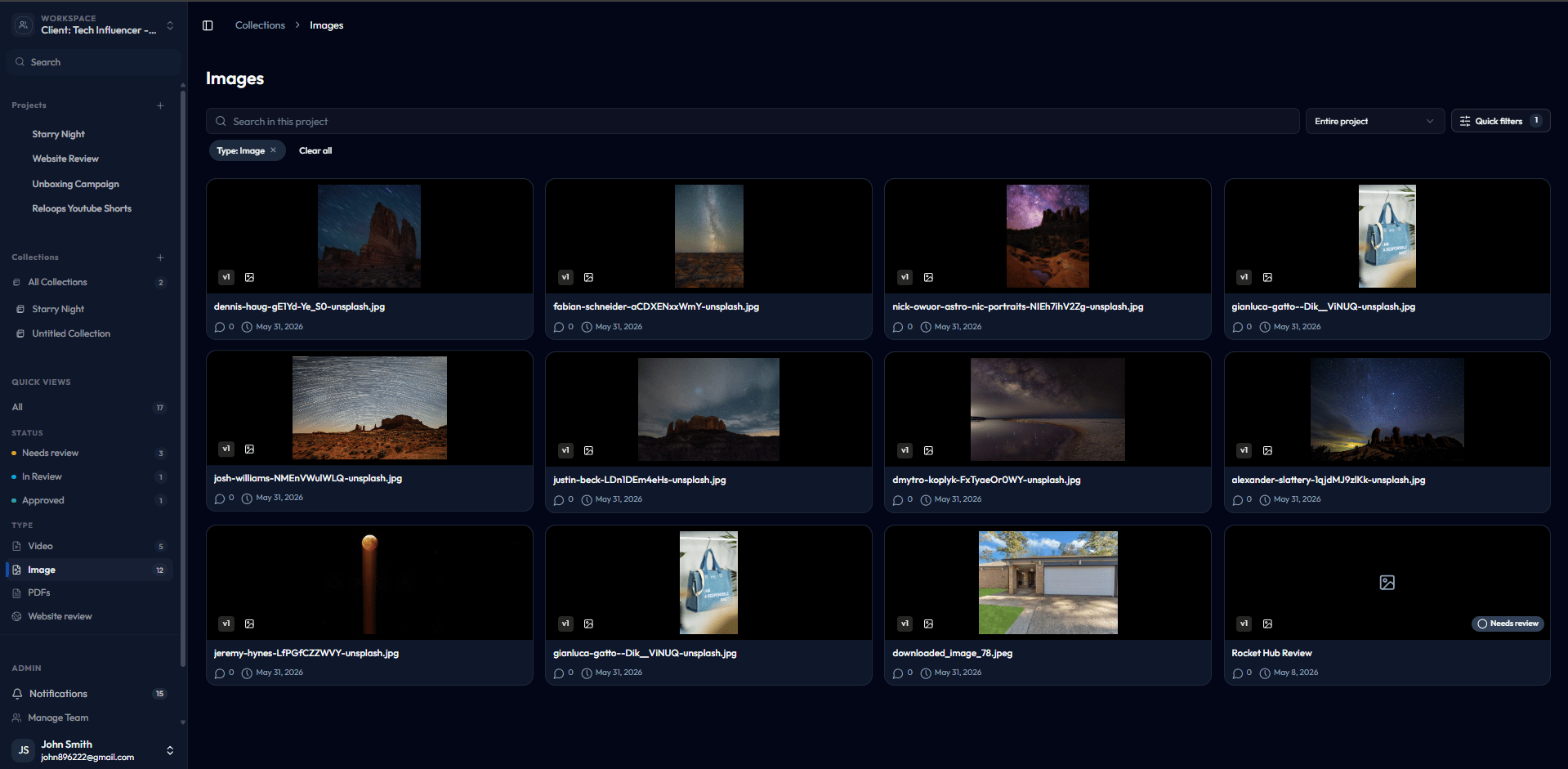
Assets view showing image asset cards in a grid

Image assets appear as reviewable cards in the Assets view.

Open an image asset to inspect the file, zoom into details, leave comments, and draw annotations on specific regions. Use image annotations when feedback depends on placement, spacing, color, copy, crop, or any other visual detail that is easier to point at than describe.

Annotations attach feedback to exact areas of an image or frame.

Video review

Video assets are best for edits, ads, social cuts, explainers, motion graphics, and any creative that needs time-based feedback. Supported video formats include MP4, MOV, WEBM, and MKV.
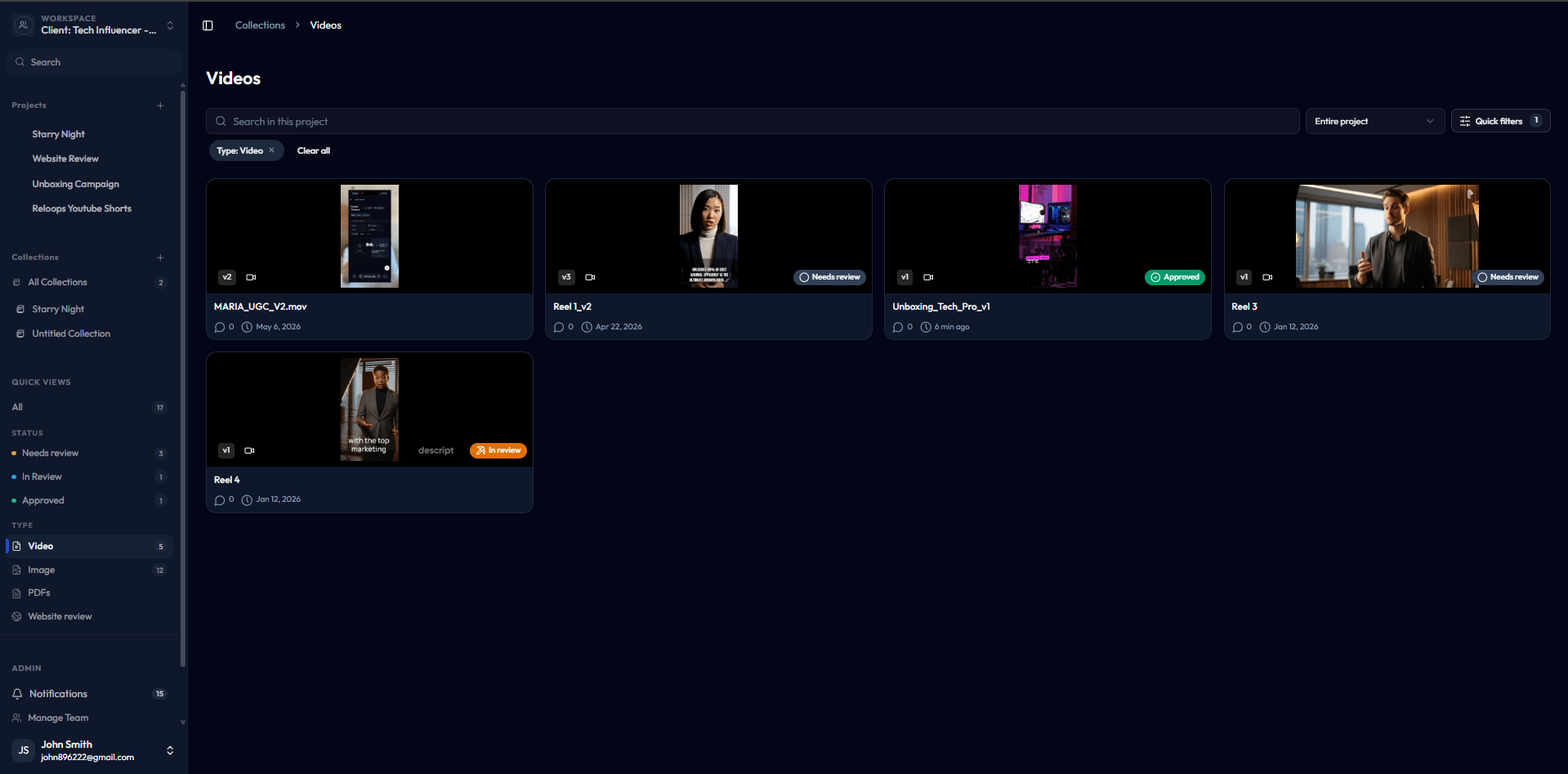
Assets view showing video asset cards in a grid

Video assets appear in the Assets view with video badges and review status.

Open a video asset to play the file, scrub the timeline, change playback speed, leave timestamped comments, draw on paused frames, and use safe-zone or platform preview overlays when needed.

Timestamped comments stay tied to the exact video moment being reviewed.

Screenshot and website review

Website review turns a captured web page into a static review asset. Use it when the team needs to comment on a landing page, app screen, marketing page, or screenshot-style design in context.
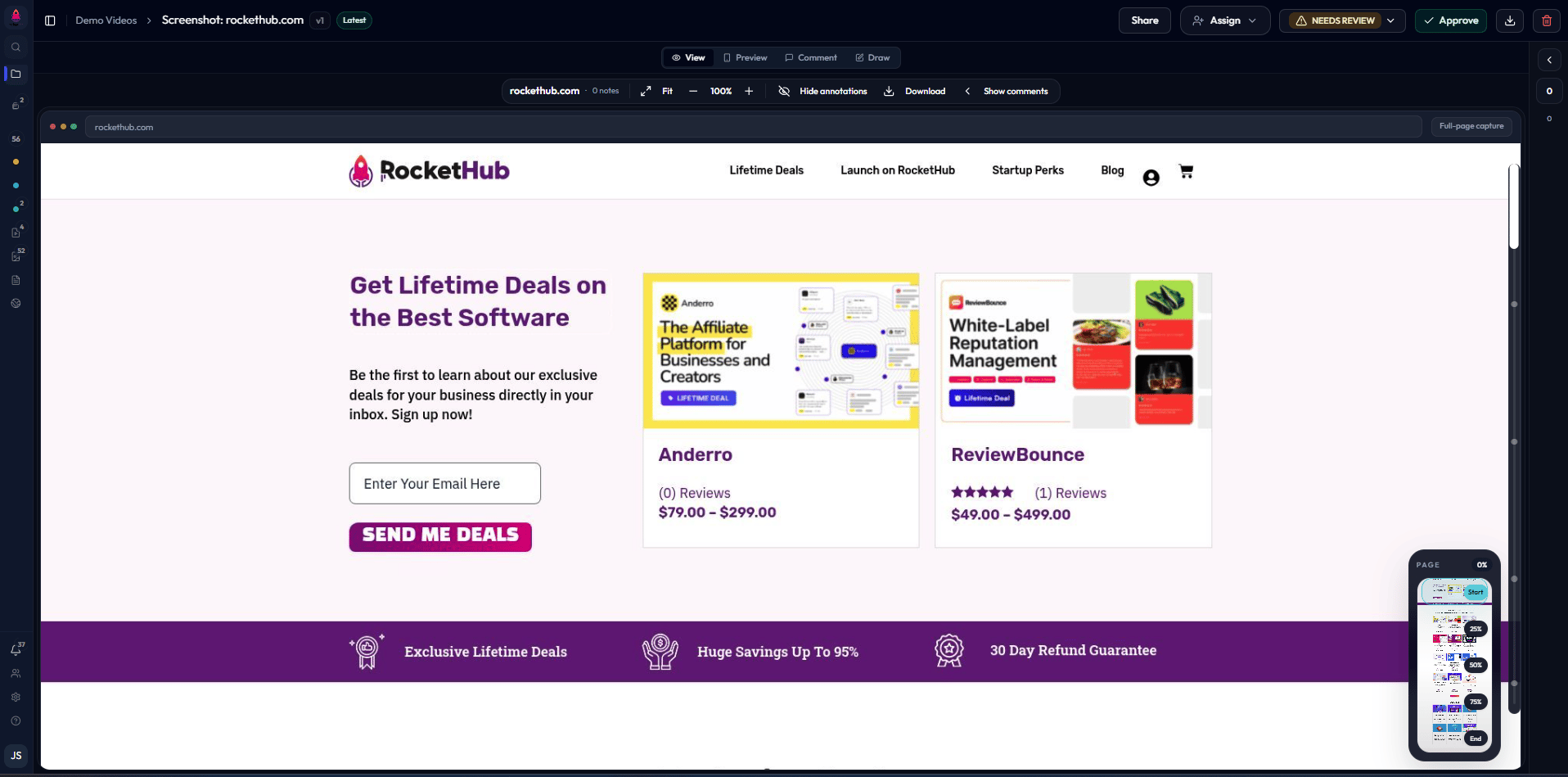
Website review with a full-page landing-page capture

Website review captures a page as an annotatable screenshot asset.
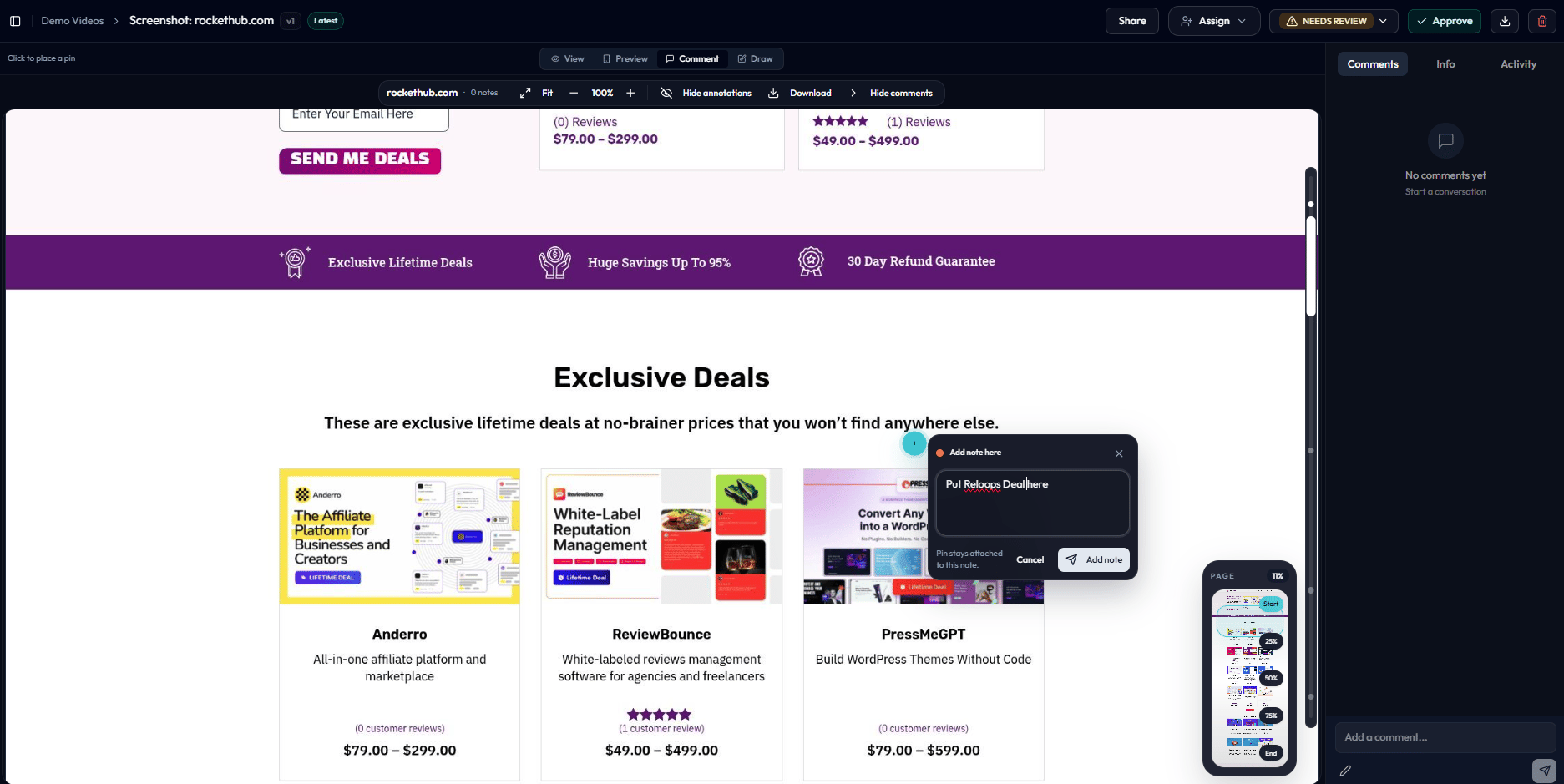
Create a website capture from a project using Add > Capture Web Page. After capture, open the asset and leave pinned comments anywhere on the screenshot. The capture is a review snapshot, so comments stay tied to the captured state rather than a live page that may change later.
Website review with a note pinned to a captured page

Comment mode lets you place a note directly on the captured page.

Versions and compare

Images and videos can both live in version stacks. Upload the revised file, wait for upload processing to finish, then drag the new asset card onto the original asset card. Reloops assigns the next version number and keeps the review history together.
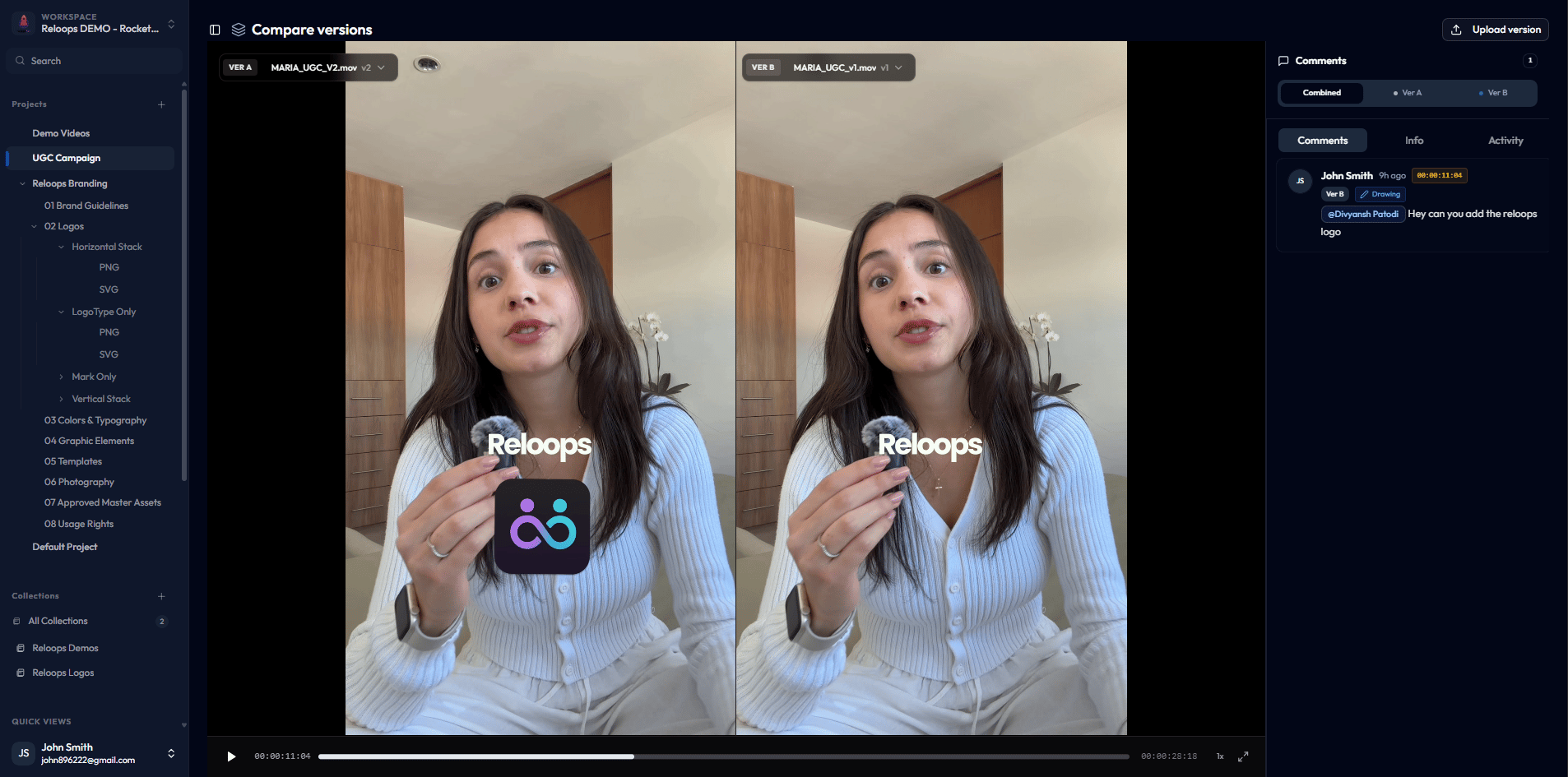
Asset review comparing two versions with the comments panel

Compare mode shows two versions side by side with version-aware comments.

For the clearest compare workflow, keep each stack in the same media family, such as image with image or video with video. See Version History and Compare Mode for the full workflow.