
How to upload assets
Open the project you want to add files to, then follow these steps.1
Enter the project
Click the project you want to upload files into from the Projects page.
2
Open the upload menu
Click the Upload button in the top-right corner of the Assets view. This opens the upload options menu.
3
Select Upload Files or Upload Folder
Choose Upload Files to select individual files, or Upload Folder to preserve a local folder hierarchy.
4
Add your files
Either drag files from your computer and drop them into the upload area, or click Browse files to open your device’s file picker and select files manually. Both methods support uploading multiple files at once.
5
Wait for processing
Each file appears as an asset card in the Assets view as soon as it finishes uploading. Large batches process quickly, so you can upload many files at once without waiting.
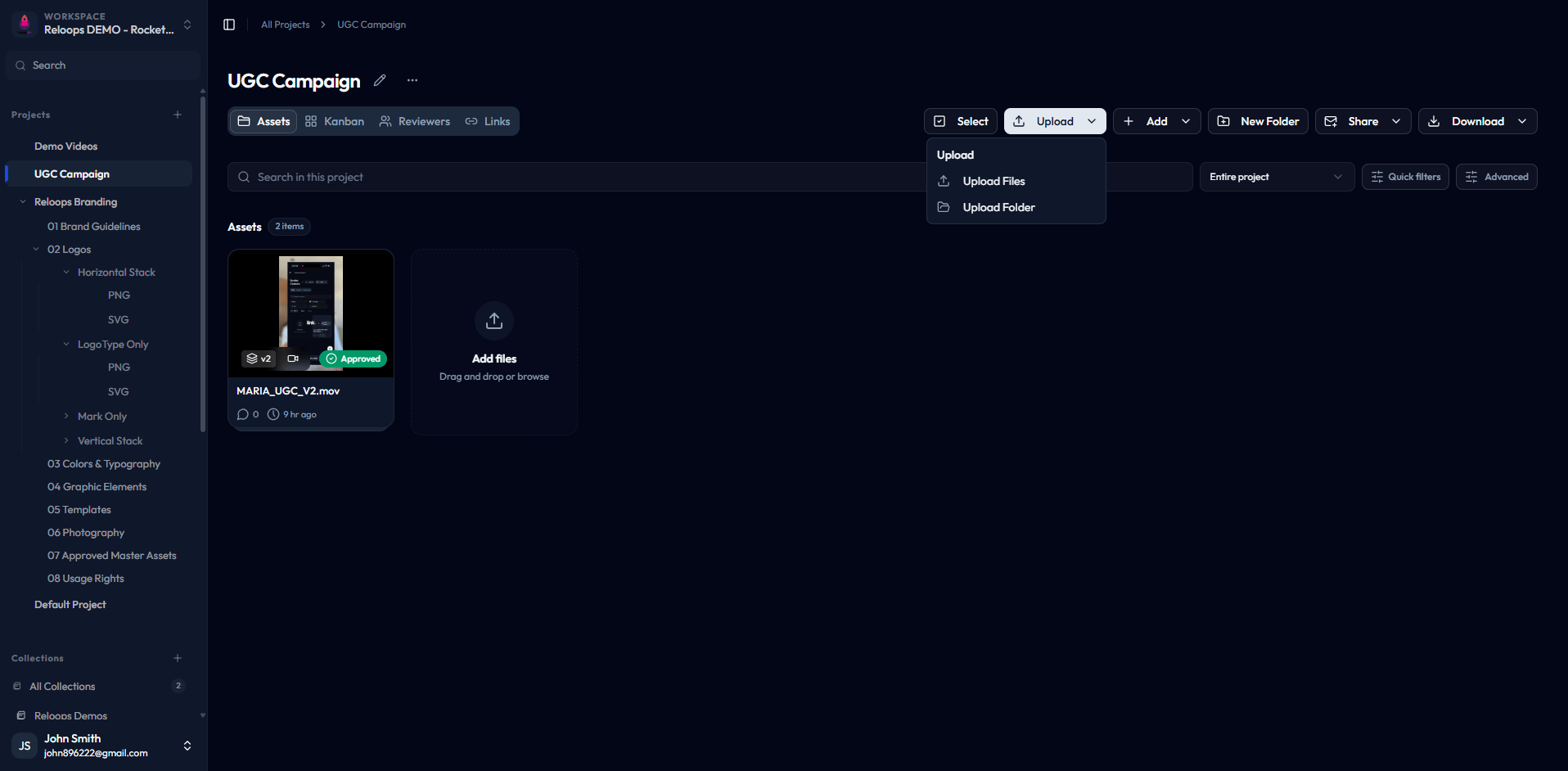
The Upload menu offers Upload Files and Upload Folder options.
Upload walkthrough from selecting files through project asset creation.
Supported file formats
Reloops supports common creative file types. Images, videos, PDFs, audio, and website captures get dedicated review surfaces. Text and data files can still be stored, organized, downloaded, tagged, and shared as project assets.Images
JPG, PNG, GIF, WEBP, and SVG files can be reviewed, annotated, commented on, shared, and compared.
Videos
MP4, MOV, M4V, WEBM, and MKV files support playback, timecoded comments, thumbnails, sharing, and compare mode.
Audio
MP3, M4A, WAV, FLAC, AAC, and OGG files support playback, timecoded comments, and embedded cover artwork when available.
Documents and other files
PDFs get a dedicated review surface. Text, CSV, and JSON files can be uploaded as project assets.
What happens after upload
After your files finish uploading:- Each file becomes an asset inside the project.
- Assets appear immediately as cards in the Assets view.
- Every asset starts with a status of No status by default.
- Assets are searchable, filterable, and ready to be assigned for review.
Upload a new version
When a new upload is a revision of an existing asset, keep it in the same version stack instead of leaving it as a separate card.1
Upload the revised file
Upload the new file into the project and wait until its asset card appears in the Assets view.
2
Stack it on the original
Drag the new asset card onto the original asset card. Reloops assigns the next version number and keeps the stack in the original asset’s project and folder.
3
Review or compare
Open the stacked asset to switch versions, manage the stack, or enter compare mode.