
The Kanban view groups every asset in a project into columns based on its current review status. Instead of opening each file individually to check where things stand, you get a single board that shows the state of the entire project at a glance - useful for producers, editors, and reviewers who need to stay aligned without constant check-ins. App route: /workspace/:workspaceId/projects/:projectId

How to open the Kanban view

Inside any project, toggle from the Files view to the Kanban view using the view switcher at the top of the Assets page. The board loads immediately with your assets sorted into their current status columns.
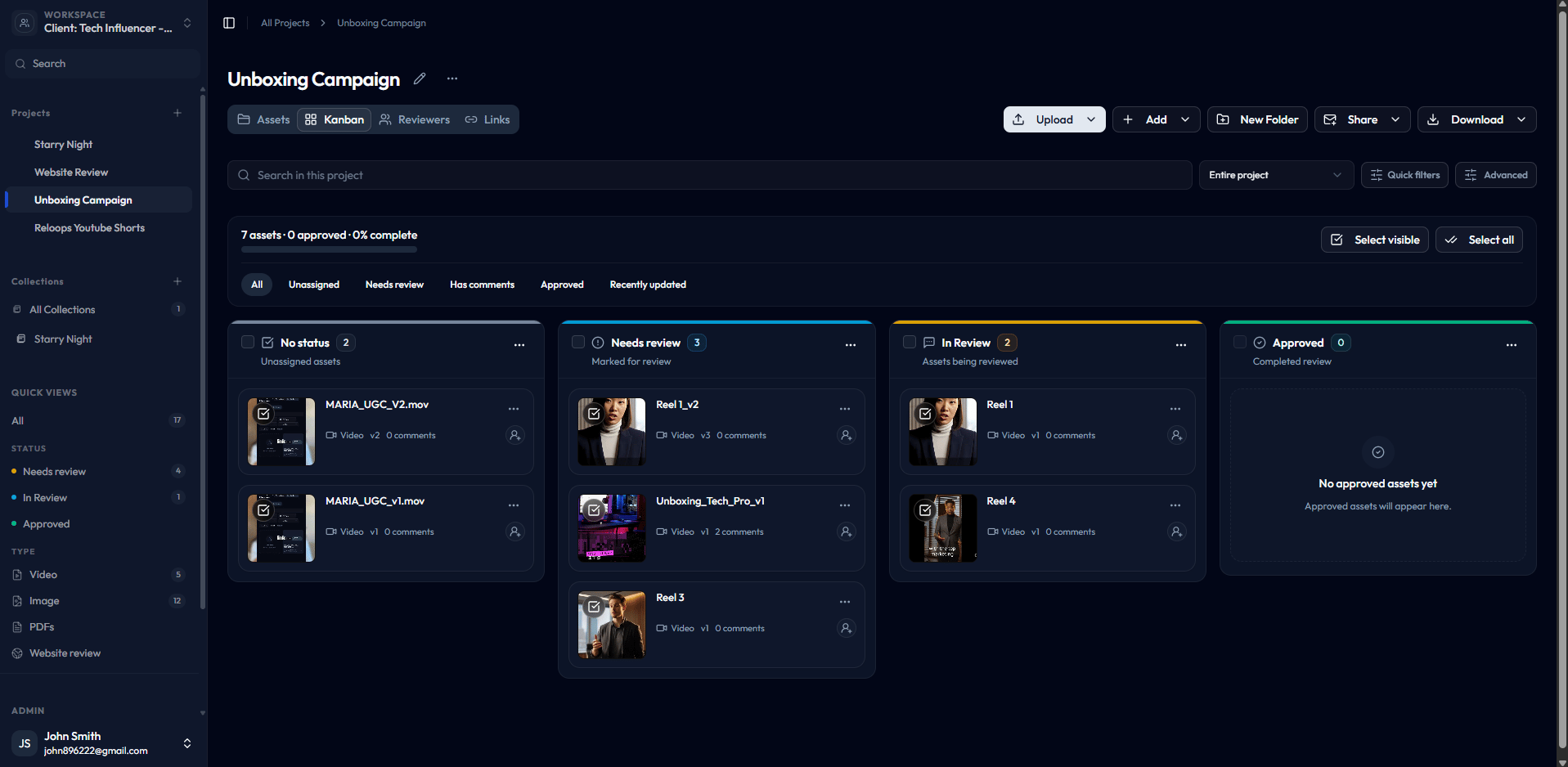
Reloops Kanban board with status columns

Status columns

The Kanban board has three active status columns. Assets move between columns as you update their status during the review round.
StatusWhat it meansWhen to use it
Needs reviewThe asset is ready and is waiting for someone to review it.Set this when you have finished preparing a file and it is ready for team or client feedback.
In ReviewFeedback is currently being given on this asset.Set this when a reviewer has opened the asset and is actively leaving comments or annotations.
ApprovedThe current version has been accepted and requires no further changes.Set this when all feedback has been addressed and the asset is signed off.
Assets with No status do not appear in the Kanban columns. Assign a status to move an asset onto the board.

How to update an asset’s status

You can change an asset’s status from two places:
  • From the Kanban board - open the asset card and update the status field in the review interface.
  • From the Files view - click the status badge on any asset card and select a new status from the dropdown.
Both views stay in sync, so a change made in one place immediately reflects in the other.
Toast confirming an asset was moved to Approved on the Kanban board

Why keeping statuses current matters

The Kanban board is only as useful as the statuses your team maintains. When everyone updates statuses as work progresses, the board becomes a reliable, real-time snapshot of the review round - no one needs to ask for a status update because the answer is already visible on the board. Make it a habit to update an asset’s status whenever you finish an action: move it to In Review when you start giving feedback, and to Approved as soon as the file is signed off.
