
Where assets live
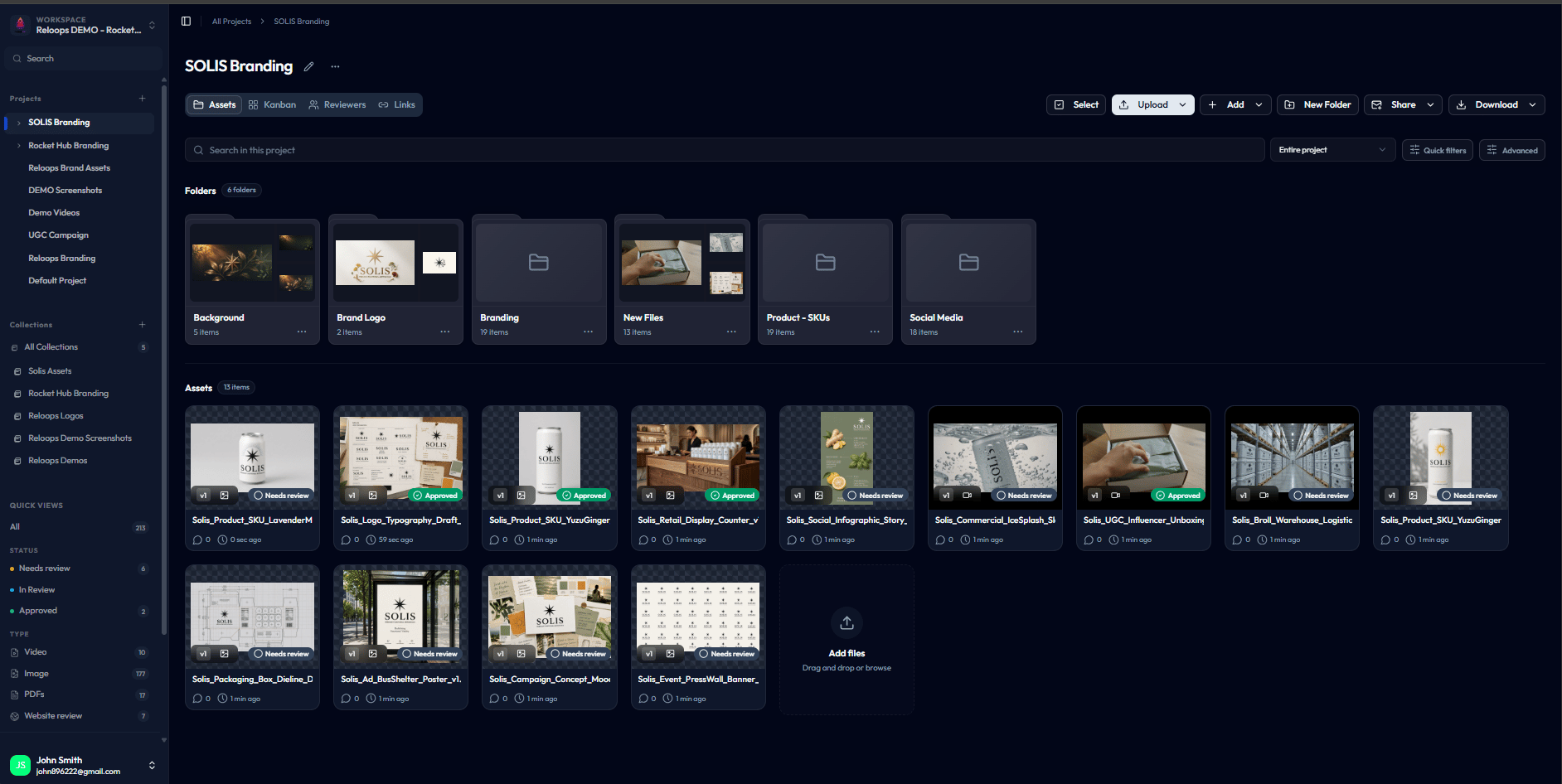
Assets always live inside a project. You cannot create an asset outside of one. The structure works like this:- A workspace contains projects.
- A project contains assets.
What you can do with an asset
Open any asset card to access its full review interface. From there you can:- Preview the file without downloading it.
- Leave comments to share feedback with your team.
- Add annotations to point to exact areas of the file.
- Assign the asset to a teammate responsible for action.
- Assign the asset to an AI agent when an automation should pick up the work.
- Update its status to reflect where it is in the review process.
- Approve the asset once the current version is accepted.
- Download the original file at any time.
- Compare versions when the asset has more than one revision.
- View history and details to see all past activity on the asset.
Asset statuses
Every asset moves through statuses that reflect its current state in the review workflow. Keeping statuses up to date helps your team see what needs attention and what is complete at a glance.No status
No status
The default state for every newly uploaded asset. The file is in the project but has not been assigned to a review stage yet. Use this when assets are still being prepared or are not yet ready for team review.
Needs review
Needs review
The asset is ready and someone should review it. Setting this status signals to reviewers that the file is waiting for their attention.
In review
In review
Feedback is actively being given on this asset. The asset is open for comments and annotations from the team.
Approved
Approved
The current version has been accepted. No further changes are needed and the asset is considered complete.
Asset views inside a project
Your project gives you two ways to look at your assets. Both views always stay in sync - updating an asset in one view immediately reflects in the other.Assets view
The Assets view displays assets as cards arranged in a grid. Use it to browse your uploads, search for a specific file, filter by status or assignee, and take quick actions without opening each asset individually. Hover an asset card to reveal its three-dot menu. Multi-version cards include Compare in that menu; single-version cards do not.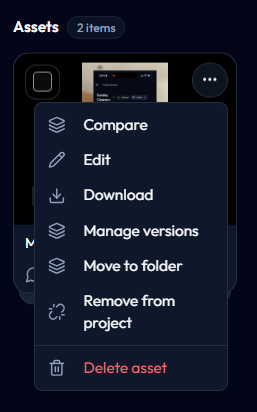
Kanban view
The Kanban view organizes assets into columns based on their status. Use it when you need a high-level picture of where every asset stands across the full review workflow - without opening anything.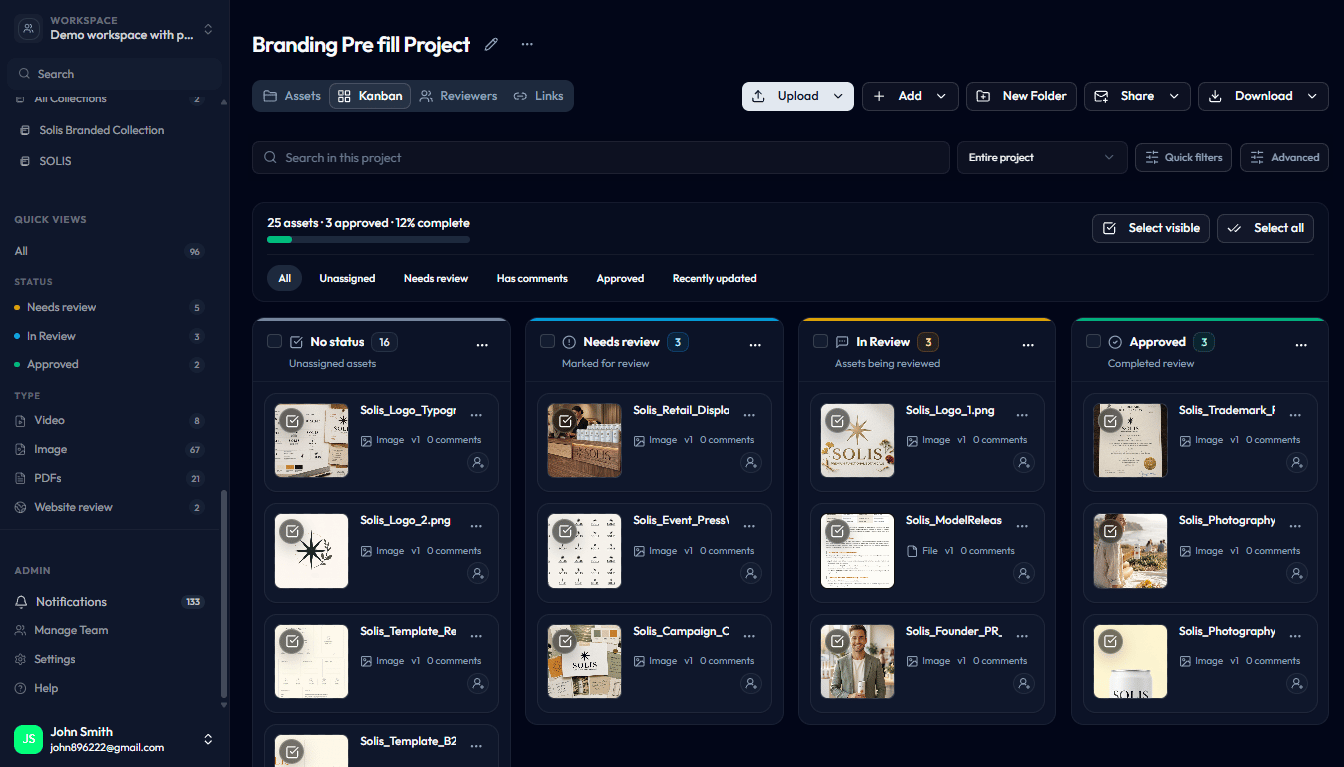
Collaboration on assets
Assets are built for team collaboration. On any asset you can:- Discuss changes with comments that the whole team can see.
- Use annotations to highlight exact regions of an image or frame of a video.
- Mark feedback as resolved to keep conversations tidy.
- Invite reviewers to participate directly in the review.
- Share version-locked links with people outside your workspace.