/workspace/:workspaceId/projects/:projectId
Selection mode
Click Select in the project toolbar to enter selection mode. From there you can select individual asset stacks, whole folders, or all visible results. Available selection actions depend on what you selected:Copy is available for asset stacks only. Moving supports folders because it preserves the nested folder contents.
Copy or move assets across projects
Use Copy when you want a duplicate in another project or folder. Use Move when the selected work belongs somewhere else.1
Select the items
Choose one or more asset stacks or folders from the Assets view.
2
Choose Copy or Move
The selection toolbar appears at the top of the project. Click Copy for asset-only selections, or Move for assets, folders, or mixed selections.
3
Pick the destination
Select any project in the same workspace. When the action supports folders, choose a destination folder or create a new one from the destination picker.
4
Confirm
Reloops transfers the selected work and keeps comments, versions, status, AI metadata, and activity history attached to the asset stack.
Add an existing workspace asset
Use Add > Add Existing Asset when an asset already exists in the workspace library and you want it to appear in the current project. The dialog lets you search by file name, subject, intent, format, or AI meaning. You can filter by image, video, PNG, or SVG, preview a match, select visible results, and attach one or many asset stacks to the current project or folder. This is different from uploading a new file: Reloops attaches the existing asset stack instead of creating a duplicate from your computer.Capture a web page
Use Add > Capture Web Page to turn a live URL into a reviewable website capture inside the project. The captured page becomes an asset, so it can be commented on, assigned, approved, shared, and included in collections like any other file. See Website Review for the review workflow.Download project or folder ZIPs
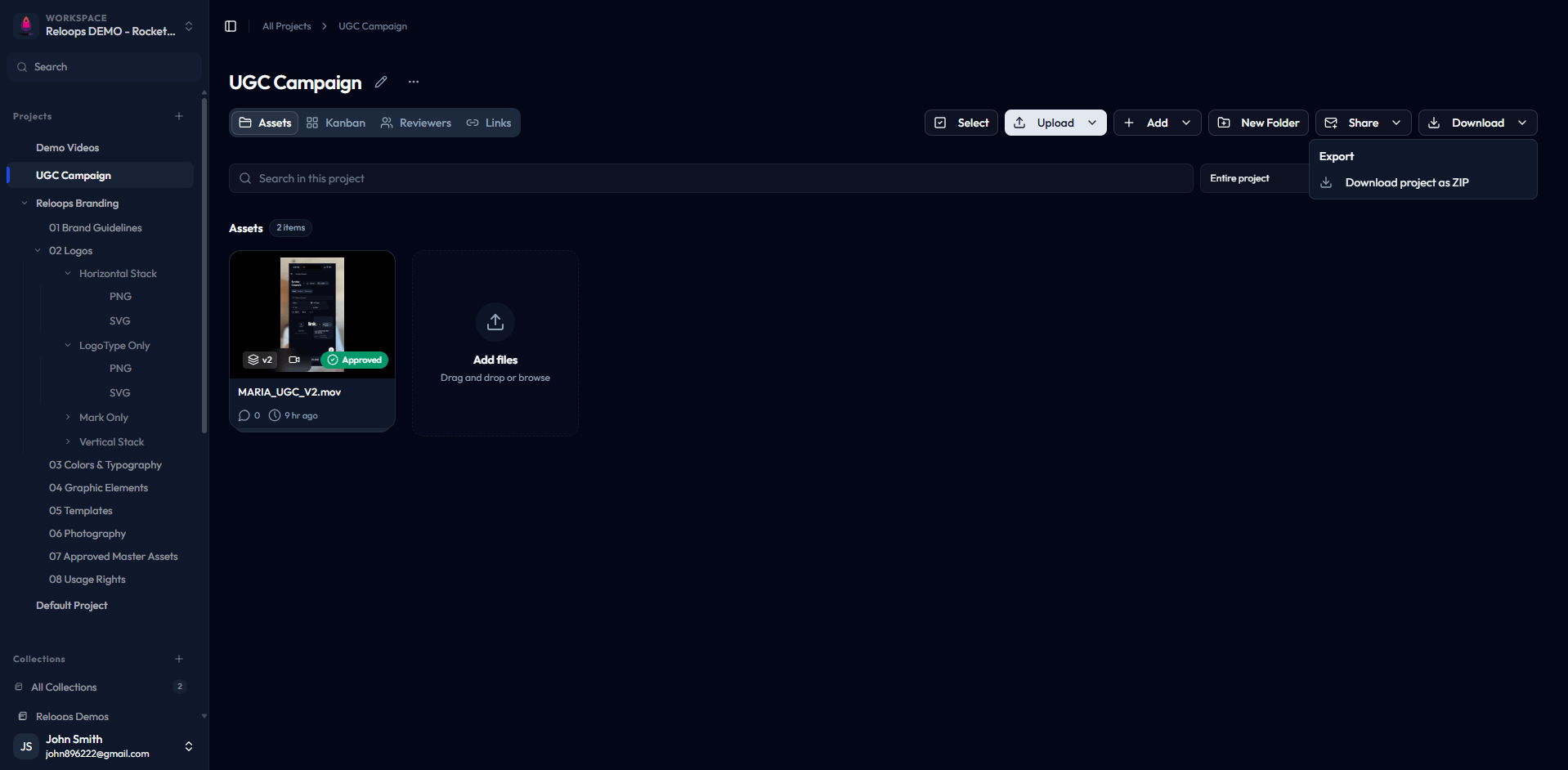
Use the project Download menu to export:- Download project as ZIP - bundles the project assets for handoff or archive.
- Download this folder as ZIP - available when you are inside a folder.
- Download in selection mode - bundles the selected assets and folder contents only.