
reloops_live_... developer key that can call the public API. Use agents when an automation, model workflow, or external tool needs to pick up review work, leave comments, upload versions, or move assets through the workflow.
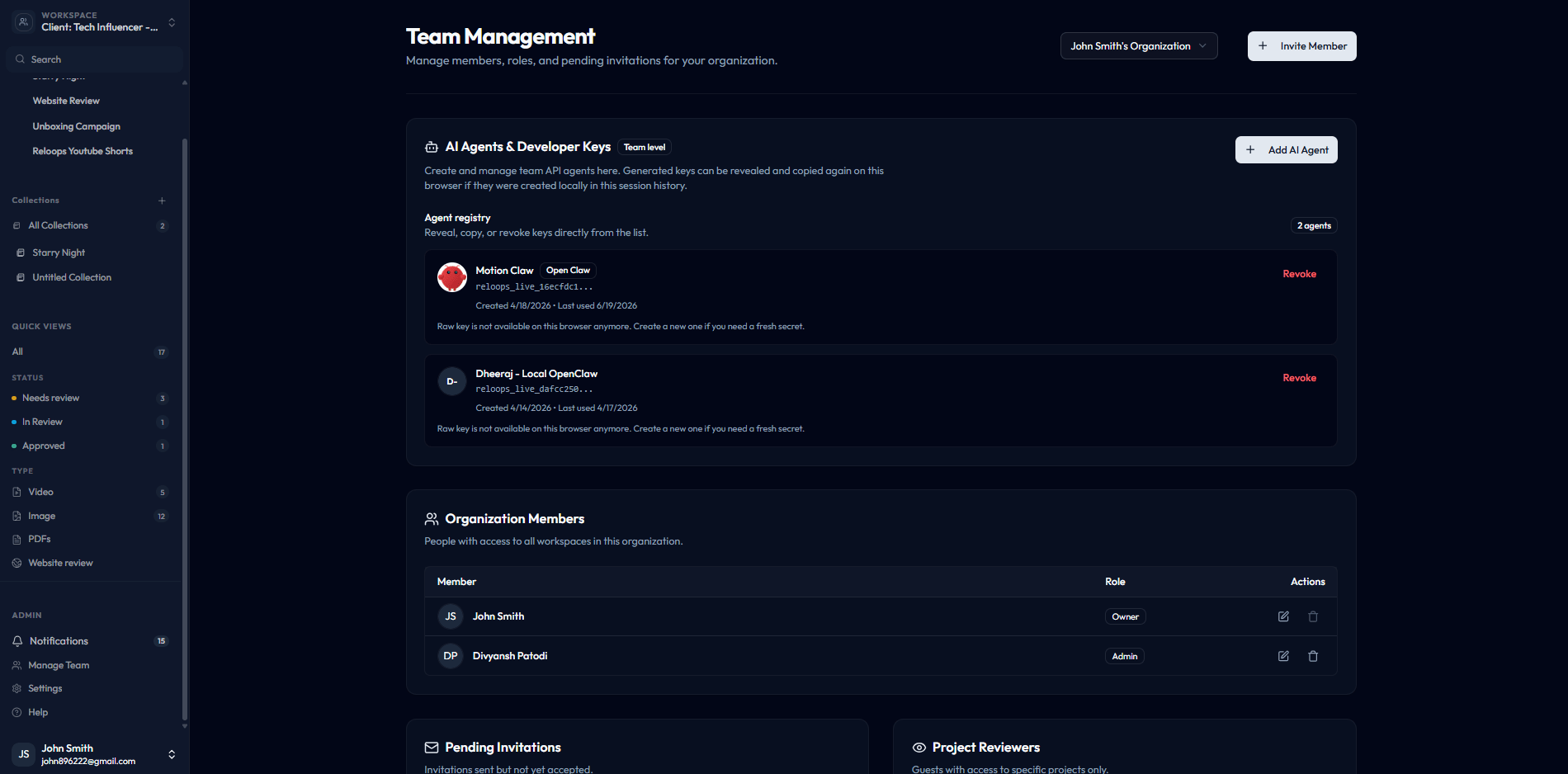
Team management includes the AI Agents & Developer Keys registry above organization members.
Who can manage keys
Only organization owners and admins can create, view, or revoke developer keys. Members can see assigned work in the product, but they cannot create API credentials for agents.Create an AI agent
1
Open Team Management
Go to
/workspace/:workspaceId/teams or click Manage Team in the sidebar.2
Add an AI agent
In AI Agents & Developer Keys, click Add AI Agent.
3
Name the agent
Use a clear label such as
Open Claw QA, n8n Publisher, or Video Revision Agent so teammates can recognize the actor in comments, assignments, and activity logs.4
Choose a provider
Pick a preset such as Open Claw, OpenAI, Claude, Gemini, Zapier, or n8n, or use Custom AI Agent.
5
Generate and store the key
Click Get Developer Key. Copy the raw key immediately. Reloops stores only the hashed secret after creation; the browser can reveal it again only if this local browser still has the cached copy.
Assign work to an agent
Agents appear anywhere an asset can be assigned:- From a project asset card, open the asset and use Assign.
- From the asset review page, choose the agent in the assignment menu.
- From the API or CLI, update
assigned_to_api_key_id.
Revoke or rotate a key
Use Revoke in the agent registry when an integration is retired, a secret is exposed, or you want to rotate credentials. Revoking a key prevents future API calls from that secret. It does not delete comments, uploads, or activity history created by the agent.What agent actions are recorded
Reloops records API-key activity in the same places as human activity:- Asset comments show the agent as the author.
- Uploaded files and versions keep the agent as the uploader.
- Status changes, assignments, metadata edits, and version-stack changes appear in the asset Activity tab.
- Project and asset views show agent assignments alongside human assignees.