
/workspace/:workspaceId/projects/:projectId
What you can do from the Assets view
The Assets view is your starting point for all project file work. From here you can:- Start uploads - add files or whole folders to the project at any time.
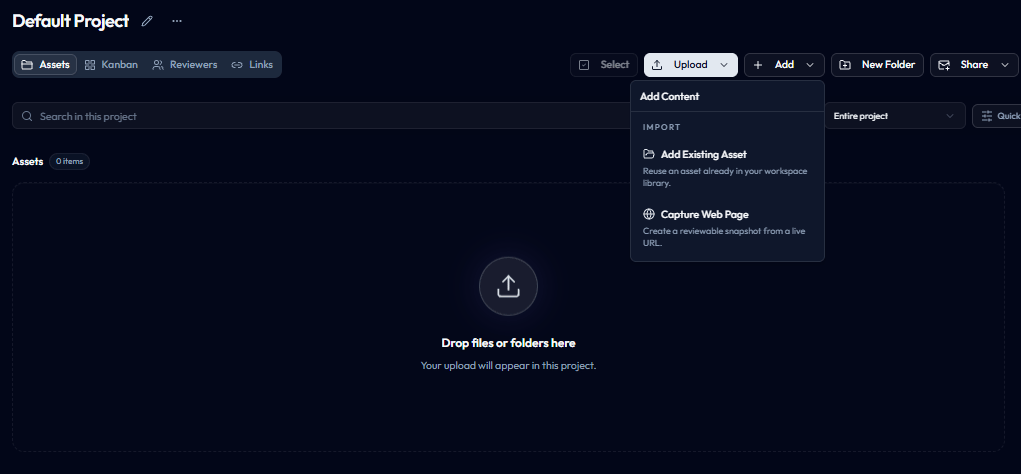
- Add existing assets - attach an asset stack that already exists elsewhere in the workspace.
- Capture web pages - create a reviewable website snapshot from a live URL.
- Create folders - organize uploaded work into nested folders.
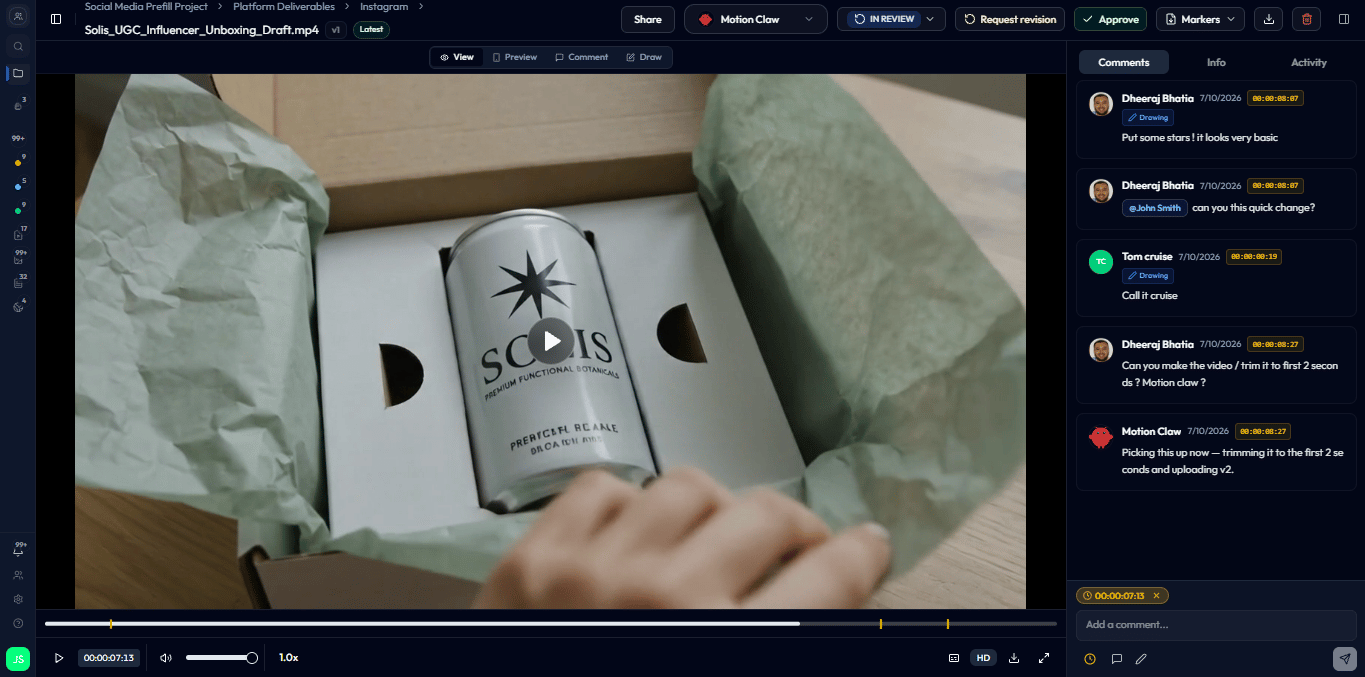
- Open assets for review - click any asset card to open the full review interface where you can preview, comment, annotate, and manage the file.
- Browse assets as cards - scan thumbnails, version chips, assignees, comments, and status badges in the Assets view to quickly find what you need.
- Create version stacks - drag a revised asset card onto the original asset card when the new file is the next version of the same work.
- Share assets - generate share links or invite reviewers directly from the view.
- Run bulk actions - select assets or folders, then copy, move, download, or remove them from the project.
- Track review progress - switch to the Kanban view to see how assets are distributed across review stages.
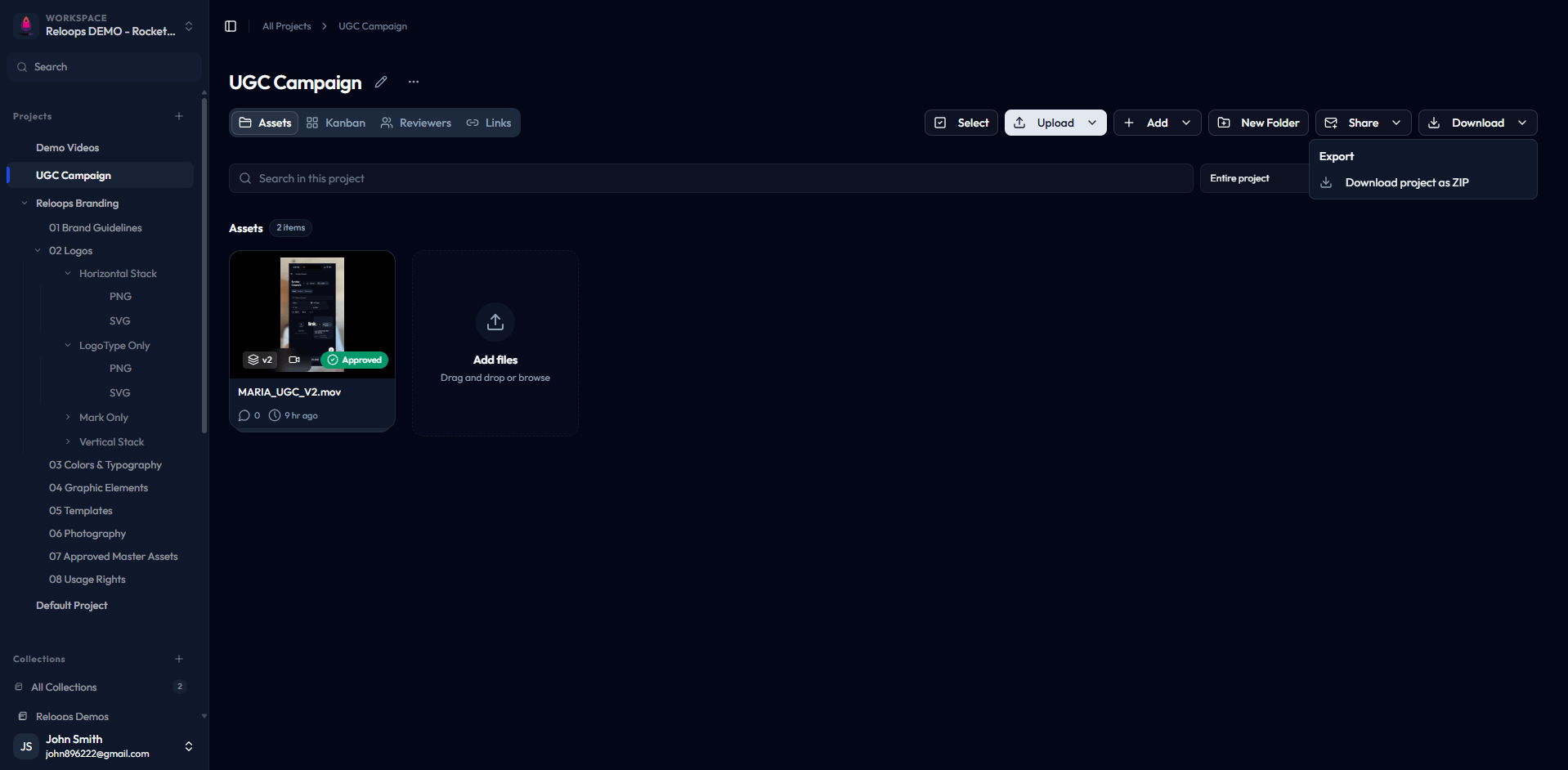
The Download menu lets you grab a single asset or a zipped batch.
Upload options
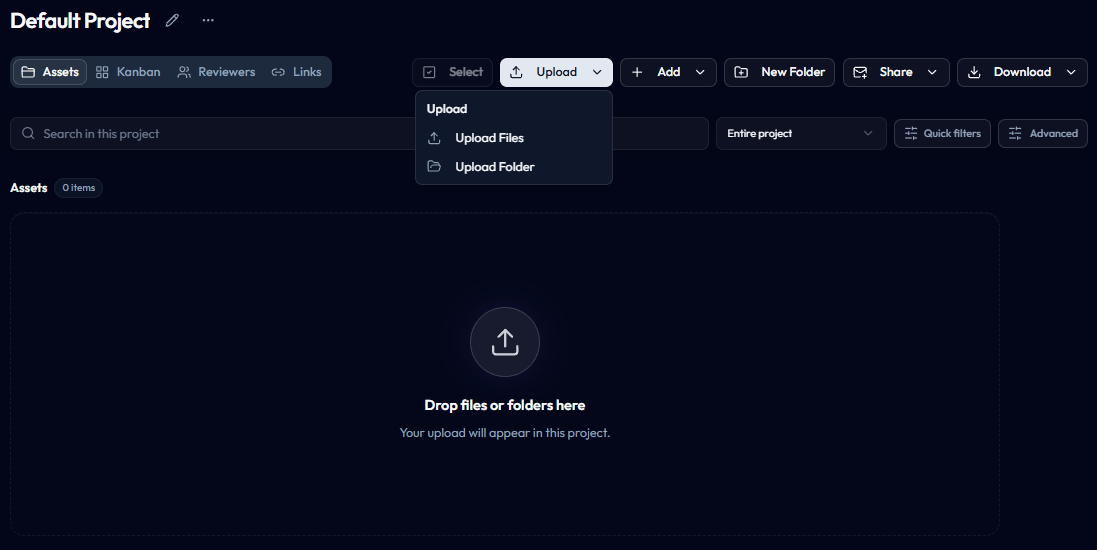
When you click the Upload button, you get two choices:
Choose Upload Folder when your files are already organized into subfolders on your computer and you want to preserve that structure in Reloops.
Opening asset cards
Every uploaded file appears as a card in the Assets view. The card shows a thumbnail, the file name, and the current status badge. Click any card to open the asset and access the full review interface, where you can:- Preview the file.
- Leave or reply to comments.
- Add visual annotations.
- Assign the asset to a teammate.
- Update the review status.
- Share the asset with external reviewers.
For the complete walkthrough of uploading files, see Upload Assets.