> ## Documentation Index
> Fetch the complete documentation index at: https://docs.reloops.app/llms.txt
> Use this file to discover all available pages before exploring further.
# Manage Team Members and Workspace Settings in Reloops
> Add members and AI agents, configure workspace identity, and review billing limits and storage from the team and settings pages in Reloops.
Workspace admins control who has access and how the workspace behaves from two dedicated areas: the team management page and the workspace settings page. Use the team page to manage the humans and AI agents working inside your workspace, and use the settings page to update your workspace profile, monitor storage consumption, and review billing limits before you hit them.
## Team management
Navigate to `/workspace/:workspaceId/teams` to manage access for your workspace.
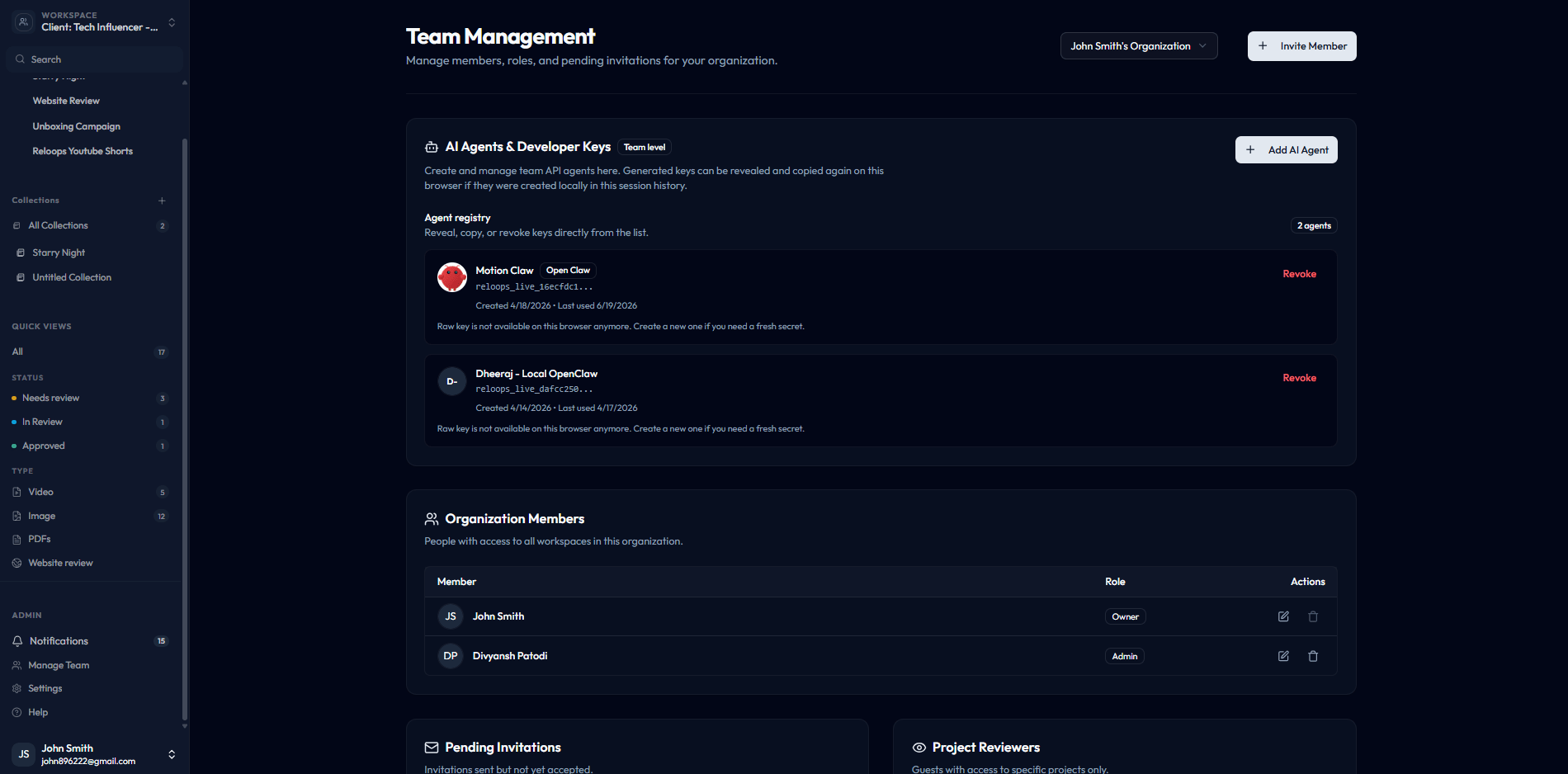 From the team management page you can:
* **Add members** - invite colleagues or external collaborators by email and assign them the appropriate role
* **Manage AI agents and developer keys** - create, reveal locally cached keys, copy keys, and revoke API agents
* **Review organization members** - see everyone in your organization who has access to this workspace and adjust their roles as needed
Keep your member list current. Removing someone from the team page revokes their access to all projects and assets inside the workspace immediately.
For agent setup and API keys, see [AI Agents and Developer Keys](/developers/ai-agents-and-developer-keys).
## Workspace settings
Navigate to `/workspace/:workspaceId/settings` to configure the workspace itself.
From the team management page you can:
* **Add members** - invite colleagues or external collaborators by email and assign them the appropriate role
* **Manage AI agents and developer keys** - create, reveal locally cached keys, copy keys, and revoke API agents
* **Review organization members** - see everyone in your organization who has access to this workspace and adjust their roles as needed
Keep your member list current. Removing someone from the team page revokes their access to all projects and assets inside the workspace immediately.
For agent setup and API keys, see [AI Agents and Developer Keys](/developers/ai-agents-and-developer-keys).
## Workspace settings
Navigate to `/workspace/:workspaceId/settings` to configure the workspace itself.
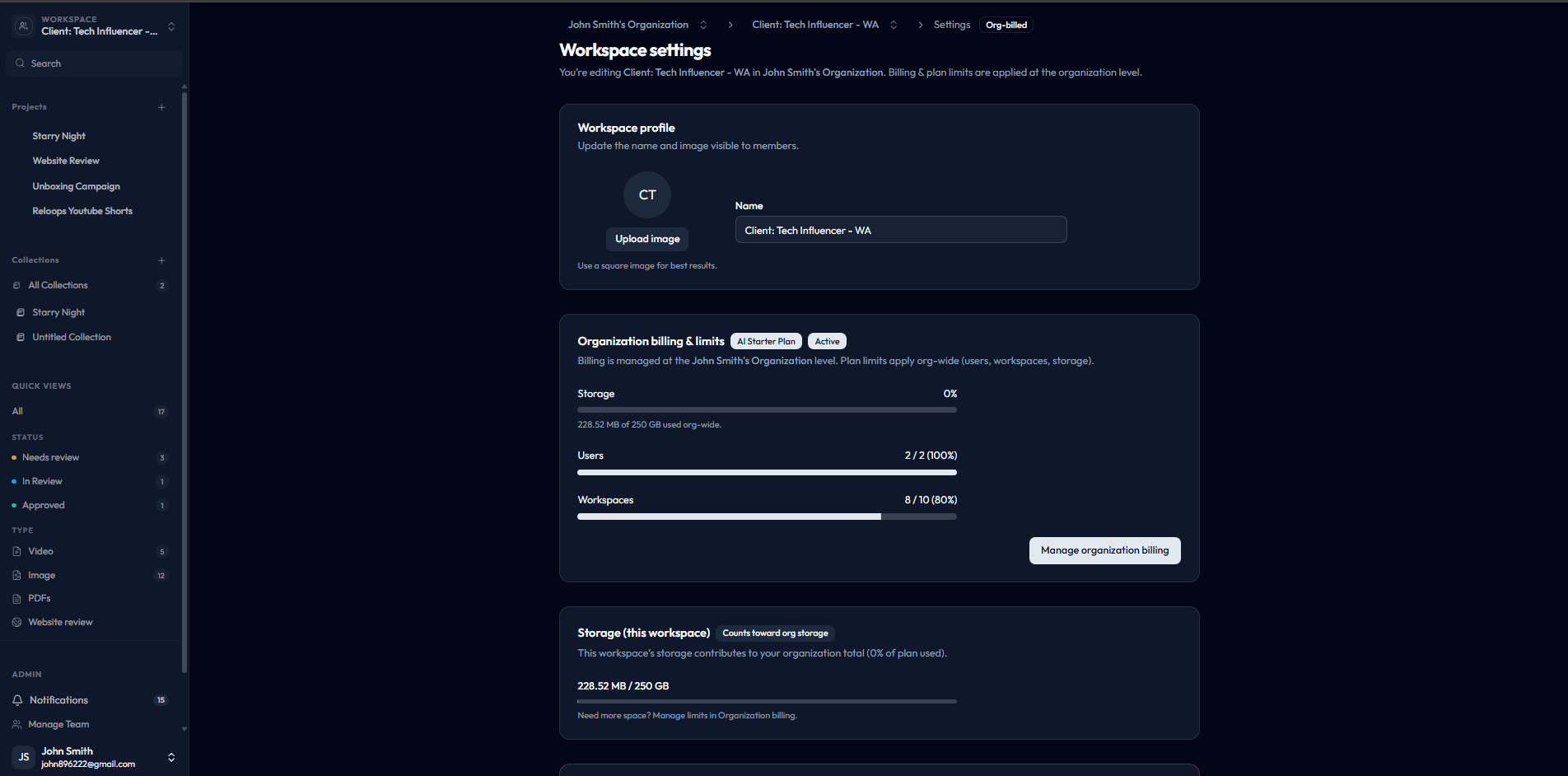 The settings page covers:
* **Workspace profile** - update the workspace name, logo, and other identity details that appear across the product
* **Billing limits** - review your current plan, seats, workspaces, API-key allowance, storage, and feature availability
* **Storage** - monitor how much storage the workspace has consumed and how much remains under your plan
* **AI Processing** - monitor AI metadata, semantic search, and website-review credit usage
Confirm you are in the correct workspace before changing settings. Many options - including billing limits, storage thresholds, and member roles - take effect immediately and apply to your entire team.
## Before changing settings
Run through this checklist before making changes that affect the whole team:
1. Verify the workspace name shown in the header matches the client or team you intend to update.
2. Check whether the setting you are changing applies workspace-wide or only to a specific member or project.
3. Review your current storage, user count, and workspace limits before adding more members or creating additional workspaces - you may need to upgrade your plan first.
The settings page covers:
* **Workspace profile** - update the workspace name, logo, and other identity details that appear across the product
* **Billing limits** - review your current plan, seats, workspaces, API-key allowance, storage, and feature availability
* **Storage** - monitor how much storage the workspace has consumed and how much remains under your plan
* **AI Processing** - monitor AI metadata, semantic search, and website-review credit usage
Confirm you are in the correct workspace before changing settings. Many options - including billing limits, storage thresholds, and member roles - take effect immediately and apply to your entire team.
## Before changing settings
Run through this checklist before making changes that affect the whole team:
1. Verify the workspace name shown in the header matches the client or team you intend to update.
2. Check whether the setting you are changing applies workspace-wide or only to a specific member or project.
3. Review your current storage, user count, and workspace limits before adding more members or creating additional workspaces - you may need to upgrade your plan first.