> ## Documentation Index
> Fetch the complete documentation index at: https://docs.reloops.app/llms.txt
> Use this file to discover all available pages before exploring further.
# Create, Configure, and Send Asset Share Links in Reloops
> Generate a shareable link for any asset in Reloops to send one file for external review - no workspace login needed for the recipient.
An asset share link is the simplest way to send a single asset to someone outside your workspace. The recipient opens a public review page at `/share/:token` and can view the asset and leave comments without needing a Reloops account or workspace access. Use share links when an external client, stakeholder, or contractor needs to review one specific asset without joining the whole workspace.
## Create an asset share link
 Navigate to the project and open the asset you want to share. Confirm you are viewing the correct version before generating the link.
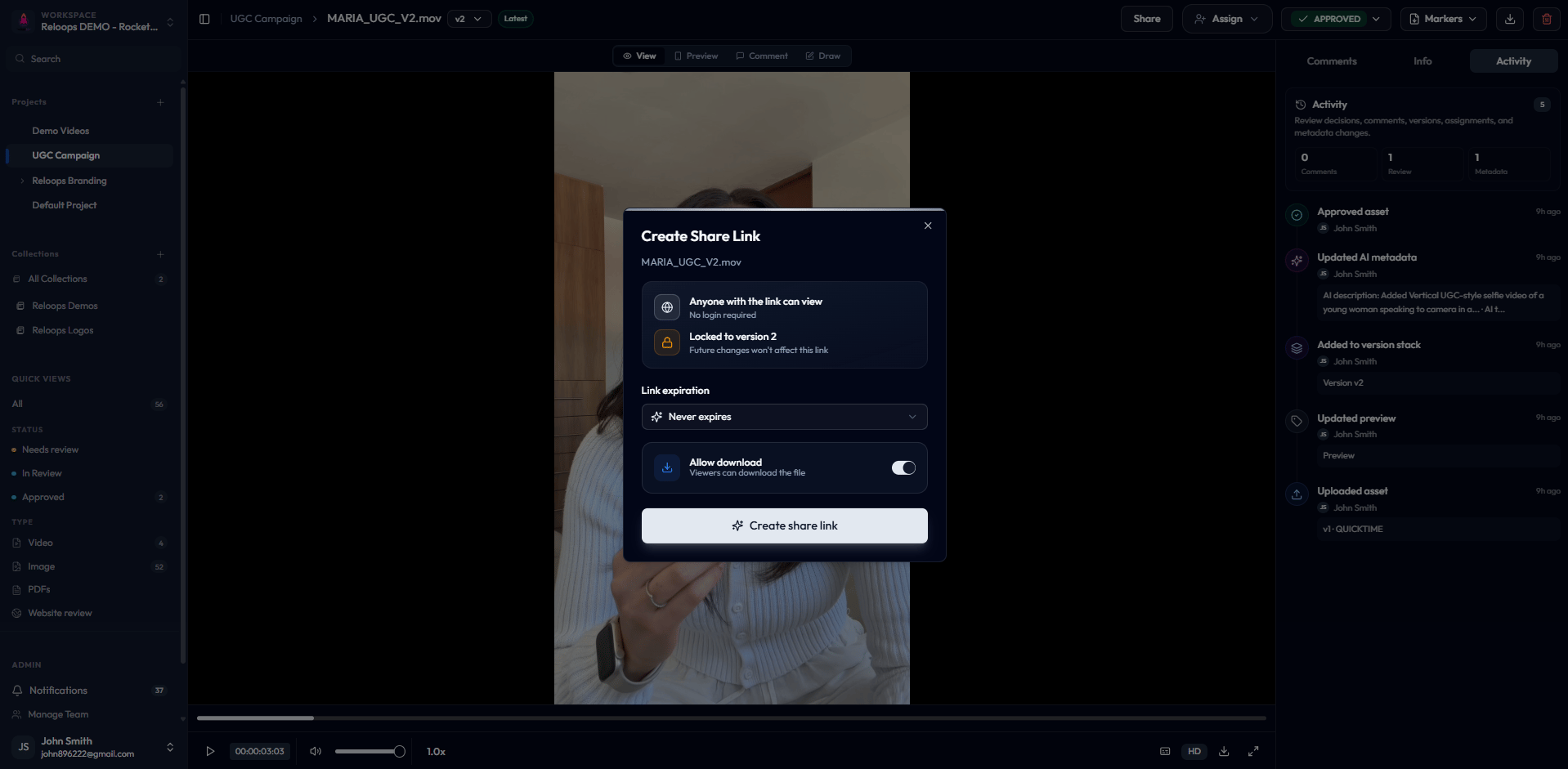
Select **Share** in the asset review toolbar. The **Create Share Link** modal opens.
Choose your options before generating the link:
* **Link expiration** - choose **Never expires**, **7 days**, **30 days**, or a custom date
* **Allow downloads** - enable this if the reviewer is allowed to download the file, or leave it off to keep the asset view-only
Click **Create Link**. Copy the generated URL and send it directly to your reviewer by email, chat, or any other channel.
Asset share links are always locked to the version open when you create the link. Future uploads do not change what the reviewer sees. To share a newer revision, open that version and create a new link.
## Checklist before sending
Run through these points before you share the link:
* **Correct asset and version are open** - double-check the version selector before you open Share
* **Expiration date is set** if access should end after a specific deadline
* **Downloads are configured** to match what you have agreed with the recipient
* **Link is sent only to the intended reviewer** - anyone with the URL can open the public share page, so treat the link as you would any shared credential
To view all active links for a project and check their expiration dates, open the **Links** tab on the project page. See [Manage Project Reviewers and Share Links](/review/project-reviewers-and-links) for details.
Navigate to the project and open the asset you want to share. Confirm you are viewing the correct version before generating the link.
Select **Share** in the asset review toolbar. The **Create Share Link** modal opens.
Choose your options before generating the link:
* **Link expiration** - choose **Never expires**, **7 days**, **30 days**, or a custom date
* **Allow downloads** - enable this if the reviewer is allowed to download the file, or leave it off to keep the asset view-only
Click **Create Link**. Copy the generated URL and send it directly to your reviewer by email, chat, or any other channel.
Asset share links are always locked to the version open when you create the link. Future uploads do not change what the reviewer sees. To share a newer revision, open that version and create a new link.
## Checklist before sending
Run through these points before you share the link:
* **Correct asset and version are open** - double-check the version selector before you open Share
* **Expiration date is set** if access should end after a specific deadline
* **Downloads are configured** to match what you have agreed with the recipient
* **Link is sent only to the intended reviewer** - anyone with the URL can open the public share page, so treat the link as you would any shared credential
To view all active links for a project and check their expiration dates, open the **Links** tab on the project page. See [Manage Project Reviewers and Share Links](/review/project-reviewers-and-links) for details.