> ## Documentation Index
> Fetch the complete documentation index at: https://docs.reloops.app/llms.txt
> Use this file to discover all available pages before exploring further.
# Manage Project Reviewers and Share Links in Reloops
> Use the Reviewers and Links tabs on a project to track guest access, check which assets reviewers can see, and audit or clean up active share links.
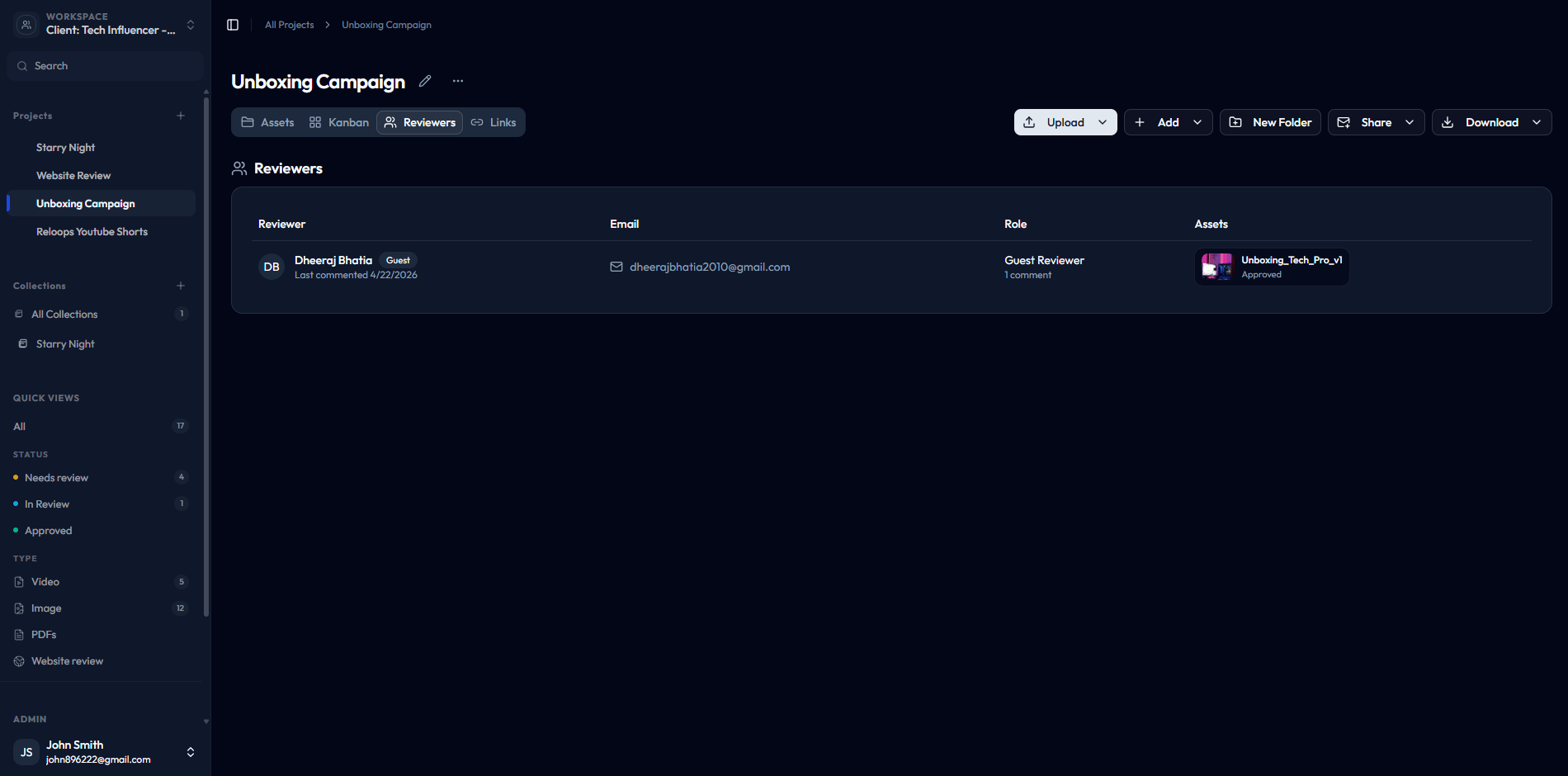
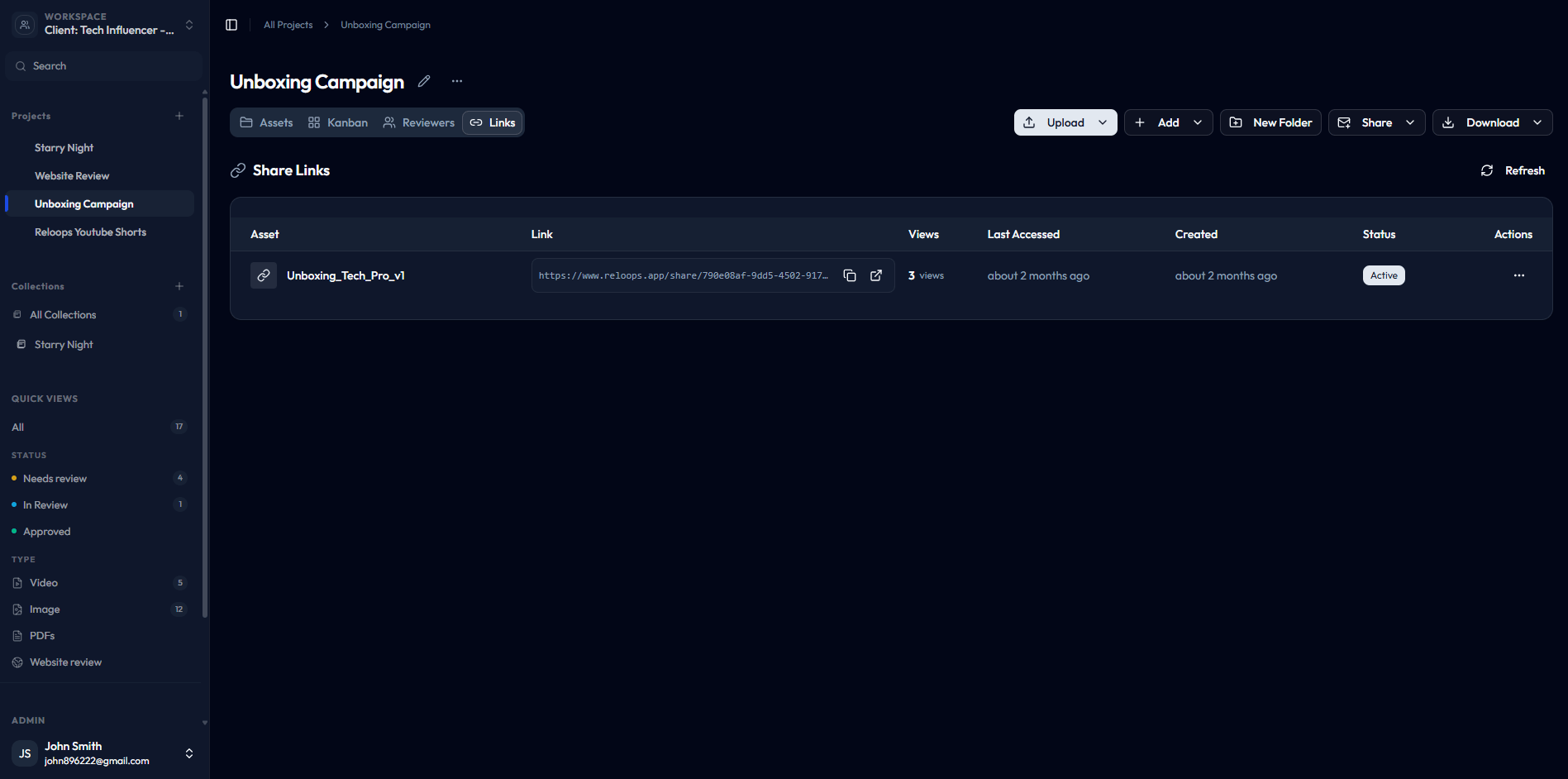
Every project has two tabs that give you a clear picture of who has access to your assets and how. The **Reviewers** tab shows guests who have reviewed or been given access to project assets. The **Links** tab shows asset share links in the project, including status, views, last access, and actions. Together, these tabs let you stay on top of external access without opening individual assets.
## Reviewers tab
The Reviewers tab lists each guest reviewer who has been given access to an asset in this project. For each entry you can see:
* The reviewer's name or email address
* Their role and guest/member status
* Comment count and last activity when available
* The asset or assets they have interacted with or can access
Use this tab to confirm that a reviewer has been set up correctly and has access to the right asset before you follow up with them.
 ## Links tab
The Links tab lists asset share links that have been created for assets in this project. For each link you can see the asset, copied URL, view count, last access time, creation time, and status. Active links can be copied, opened, or revoked from the row menu.
## Links tab
The Links tab lists asset share links that have been created for assets in this project. For each link you can see the asset, copied URL, view count, last access time, creation time, and status. Active links can be copied, opened, or revoked from the row menu.
 ## When to check these tabs
Open the Reviewers tab and confirm the reviewer appears in the list and is assigned to the correct asset. If they are missing, go to the asset and share it again. If they appear but still cannot access it, check whether the share link has expired in the Links tab.
Use the Reviewers tab to get a consolidated view of everyone with guest access across the project. This is faster than opening each asset individually to check who has been invited.
Open the Links tab and review which links are still active. Expire or revoke any links that should no longer be accessible now that the review cycle is complete. Keeping old links active increases the risk of unintended access to project assets.
## When to check these tabs
Open the Reviewers tab and confirm the reviewer appears in the list and is assigned to the correct asset. If they are missing, go to the asset and share it again. If they appear but still cannot access it, check whether the share link has expired in the Links tab.
Use the Reviewers tab to get a consolidated view of everyone with guest access across the project. This is faster than opening each asset individually to check who has been invited.
Open the Links tab and review which links are still active. Expire or revoke any links that should no longer be accessible now that the review cycle is complete. Keeping old links active increases the risk of unintended access to project assets.