> ## Documentation Index
> Fetch the complete documentation index at: https://docs.reloops.app/llms.txt
> Use this file to discover all available pages before exploring further.
# Leave Comments and Annotations on Assets in Reloops
> Leave timestamped, annotated, or general comments on any asset in Reloops. Use drawing tools to mark up frames with precision and clarity.
Reloops keeps feedback clear and actionable by letting you leave comments directly on the asset itself. Instead of writing long emails that describe timestamps or regions, you pin feedback to the exact frame, spot, or moment you mean - so editors always know what you are referring to and can act on it without back-and-forth.
## Comment types
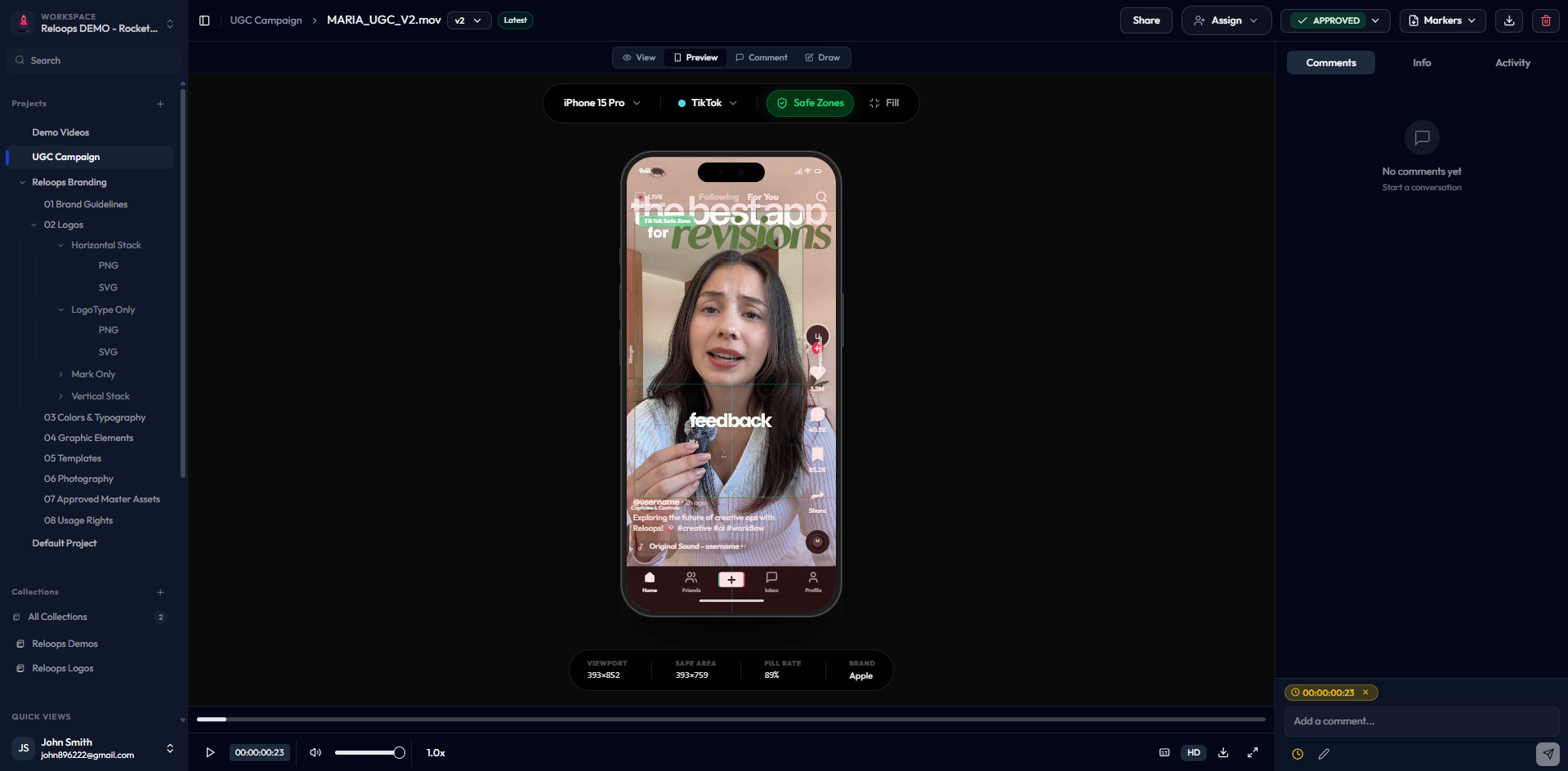
Timestamp comments are the standard way to leave feedback on a video. Pause the video at the exact moment you want to discuss, then type your comment in the box and submit.
The comment is linked to that specific frame. When an editor clicks the comment in the list, the video jumps instantly to that timecode - no searching, no ambiguity about which scene or cut you mean.
Use timestamp comments whenever your feedback is tied to a particular moment in the video.
Annotations let you point to a specific region on screen - a logo placement, a color correction issue, a typo, or any element that needs attention.
Click directly on the video or image in the viewer. A **pin** or **box** appears where you click, and your comment is visually anchored to that position. Reviewers can see exactly what you are pointing at without any description needed.
Annotations work on both videos and images.
Use a general comment when your feedback applies to the asset as a whole rather than a specific frame or region - for example, *"Great work, approved!"* or a high-level note about direction.
Before submitting, uncheck the timestamp toggle or the **Include time** option. The comment appears in the comment list but does not move the playhead when clicked.
## Drawing and markup tools
When you leave an annotation, you can use markup tools to make your feedback even more precise. The toolbar appears when you click on the viewer to place an annotation.
| Tool | What it does |
| ---------------------- | ----------------------------------------------------------------------------------------- |
| **Pen** | Draw freehand shapes, circles, or lines directly on the frame |
| **Arrow** | Place a directional arrow pointing to a specific element |
| **Rectangle / Circle** | Draw a box or ellipse to highlight a defined area |
| **Colors** | Switch the markup color to ensure your annotation stands out against the asset background |
Choose the color that contrasts best with the content you are marking up so your annotation is easy to see at a glance.
 ## Comment types