> ## Documentation Index
> Fetch the complete documentation index at: https://docs.reloops.app/llms.txt
> Use this file to discover all available pages before exploring further.
# Asset Review: Comment, Approve, and Request Changes
> Use the asset review page to view the current version, leave feedback, assign work, update status, and approve or request revisions on any asset.
The asset review page is where feedback and decisions stay attached to the asset being reviewed. Open any asset in a project and you land here - everything your team needs to evaluate a version, respond to comments, and move the work forward is in one place.
 ## What you can do from the review page
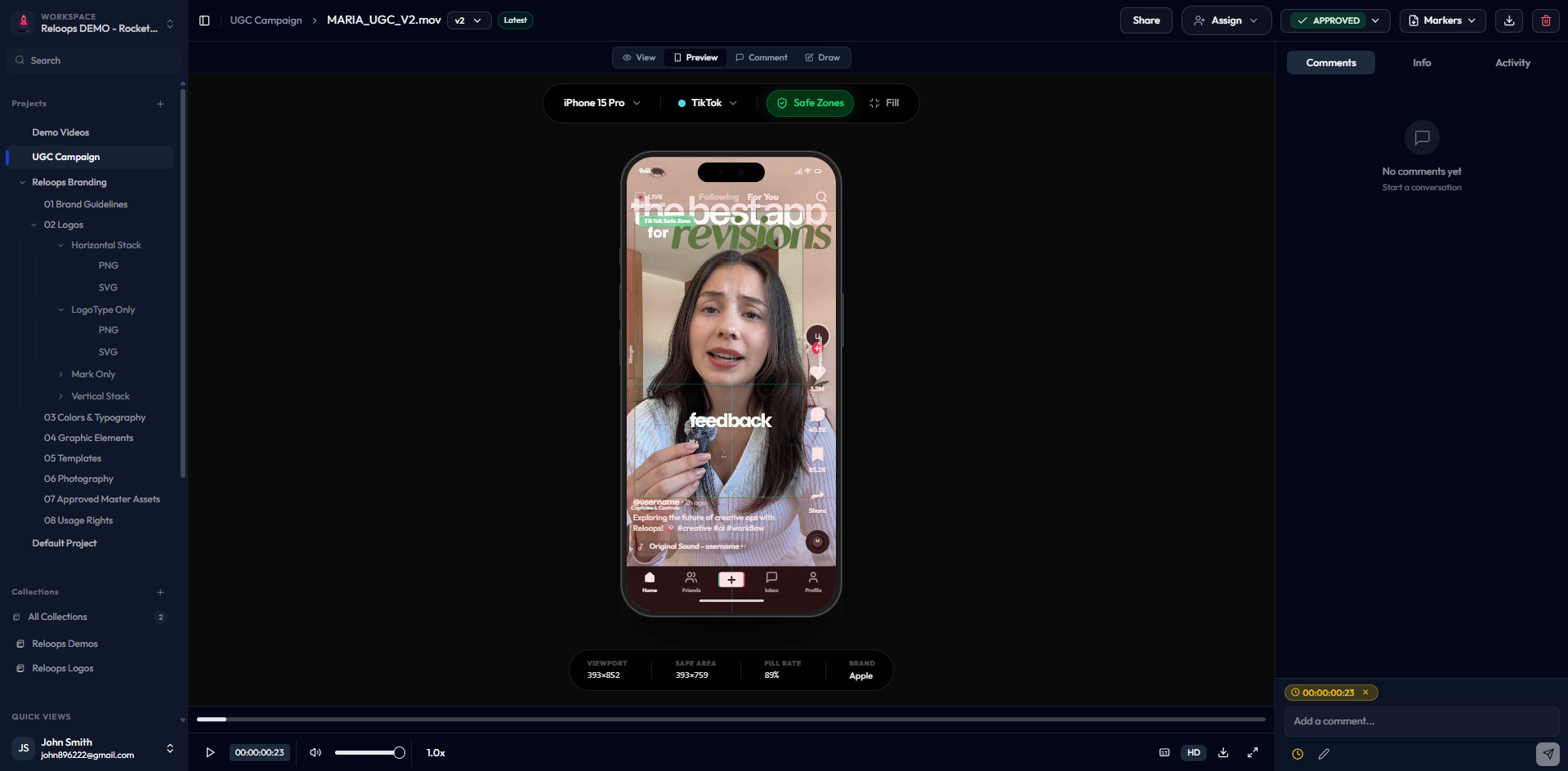
See the latest uploaded version of the asset in the built-in viewer. Switch between previous versions from the version selector.
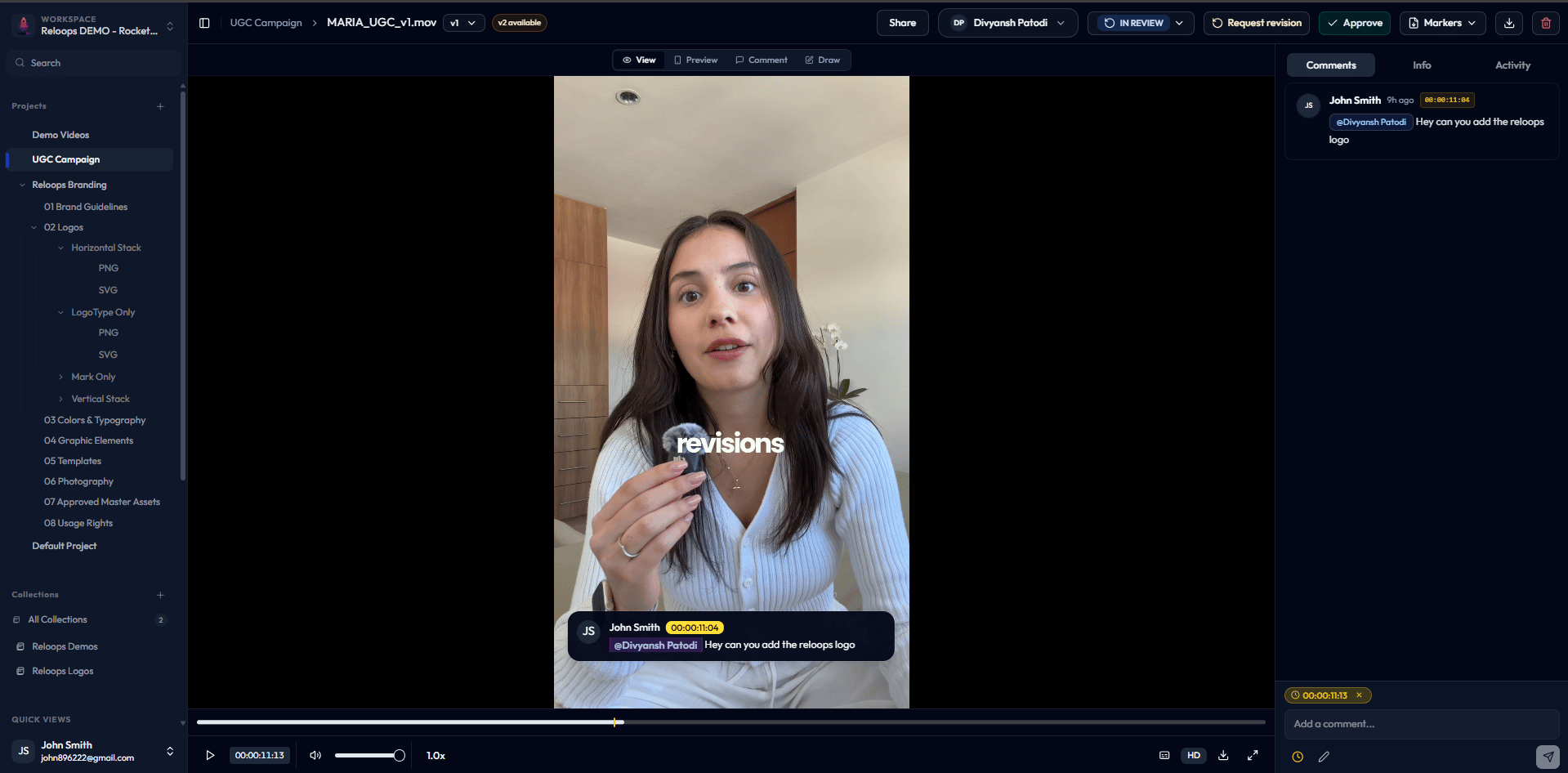
Add timestamped, annotated, or general comments directly on the asset. Read and reply to feedback from teammates and reviewers.
Assign the asset to a specific team member to signal who is responsible for acting on the current feedback.
Update the asset's status to reflect where it is in your workflow - **No status**, **Needs review**, **In review**, or **Approved**.
Mark the asset as approved when it meets the brief. The approval is recorded against the version that was open at the time.
Flag that changes are needed. Pairing a revision request with timestamped or annotated comments gives the editor clear, actionable direction.
For file-type-specific guidance, see [Review Images, Videos, and Screenshots](/review/review-images-videos-and-screenshots).
## What you can do from the review page
See the latest uploaded version of the asset in the built-in viewer. Switch between previous versions from the version selector.
Add timestamped, annotated, or general comments directly on the asset. Read and reply to feedback from teammates and reviewers.
Assign the asset to a specific team member to signal who is responsible for acting on the current feedback.
Update the asset's status to reflect where it is in your workflow - **No status**, **Needs review**, **In review**, or **Approved**.
Mark the asset as approved when it meets the brief. The approval is recorded against the version that was open at the time.
Flag that changes are needed. Pairing a revision request with timestamped or annotated comments gives the editor clear, actionable direction.
For file-type-specific guidance, see [Review Images, Videos, and Screenshots](/review/review-images-videos-and-screenshots).
 ## Share from the review page
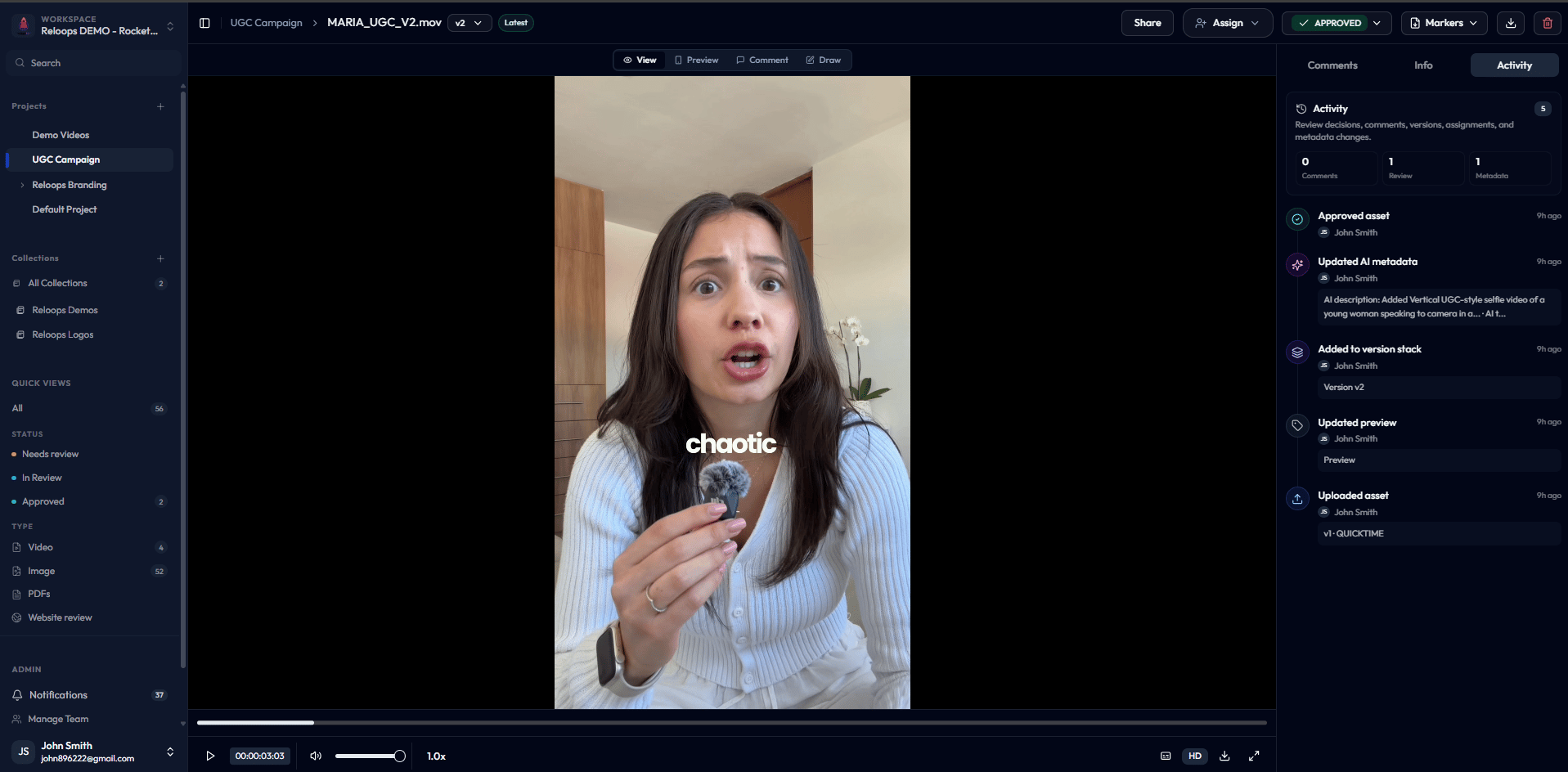
You can generate an asset share link directly from the review page without leaving the asset. Select **Share** to open the link creation modal, configure your link settings, and send the link to an external reviewer. See [Create and Send Asset Share Links](/review/share-links) for the full steps and options.
## Version history
If an asset has multiple versions, use the version pill beside the asset name, such as **v2**, to switch revisions, manage the stack, or open compare mode. Choose **Compare versions** from that menu to enter the side-by-side view.
## Share from the review page
You can generate an asset share link directly from the review page without leaving the asset. Select **Share** to open the link creation modal, configure your link settings, and send the link to an external reviewer. See [Create and Send Asset Share Links](/review/share-links) for the full steps and options.
## Version history
If an asset has multiple versions, use the version pill beside the asset name, such as **v2**, to switch revisions, manage the stack, or open compare mode. Choose **Compare versions** from that menu to enter the side-by-side view.
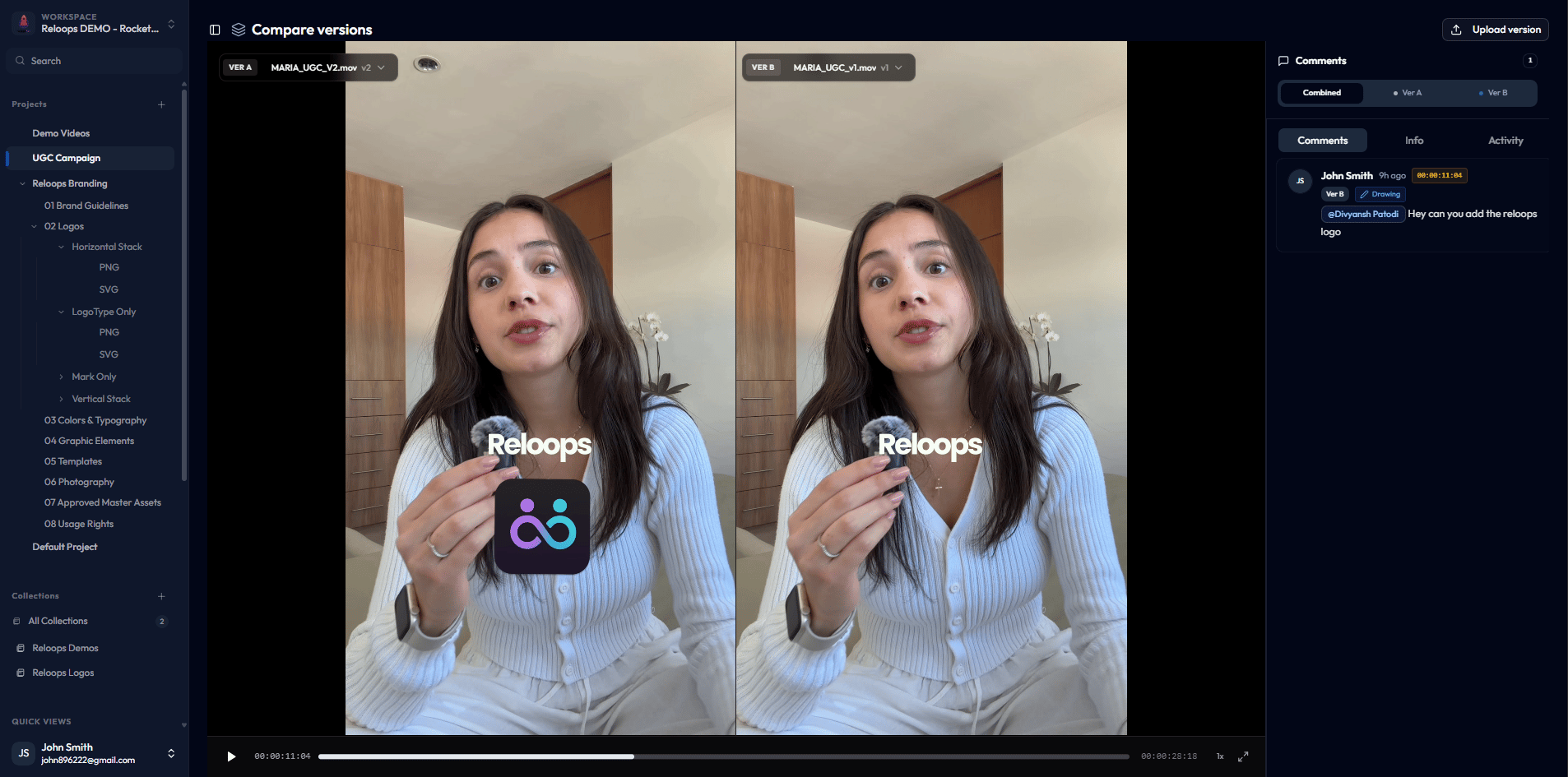 See [Version History and Compare Mode](/review/version-history-and-compare) for the full workflow.