> ## Documentation Index
> Fetch the complete documentation index at: https://docs.reloops.app/llms.txt
> Use this file to discover all available pages before exploring further.
# Track Review Progress with the Reloops Kanban Board
> Use the Kanban board in Reloops to see all project assets grouped by review status so your team always knows what needs attention.
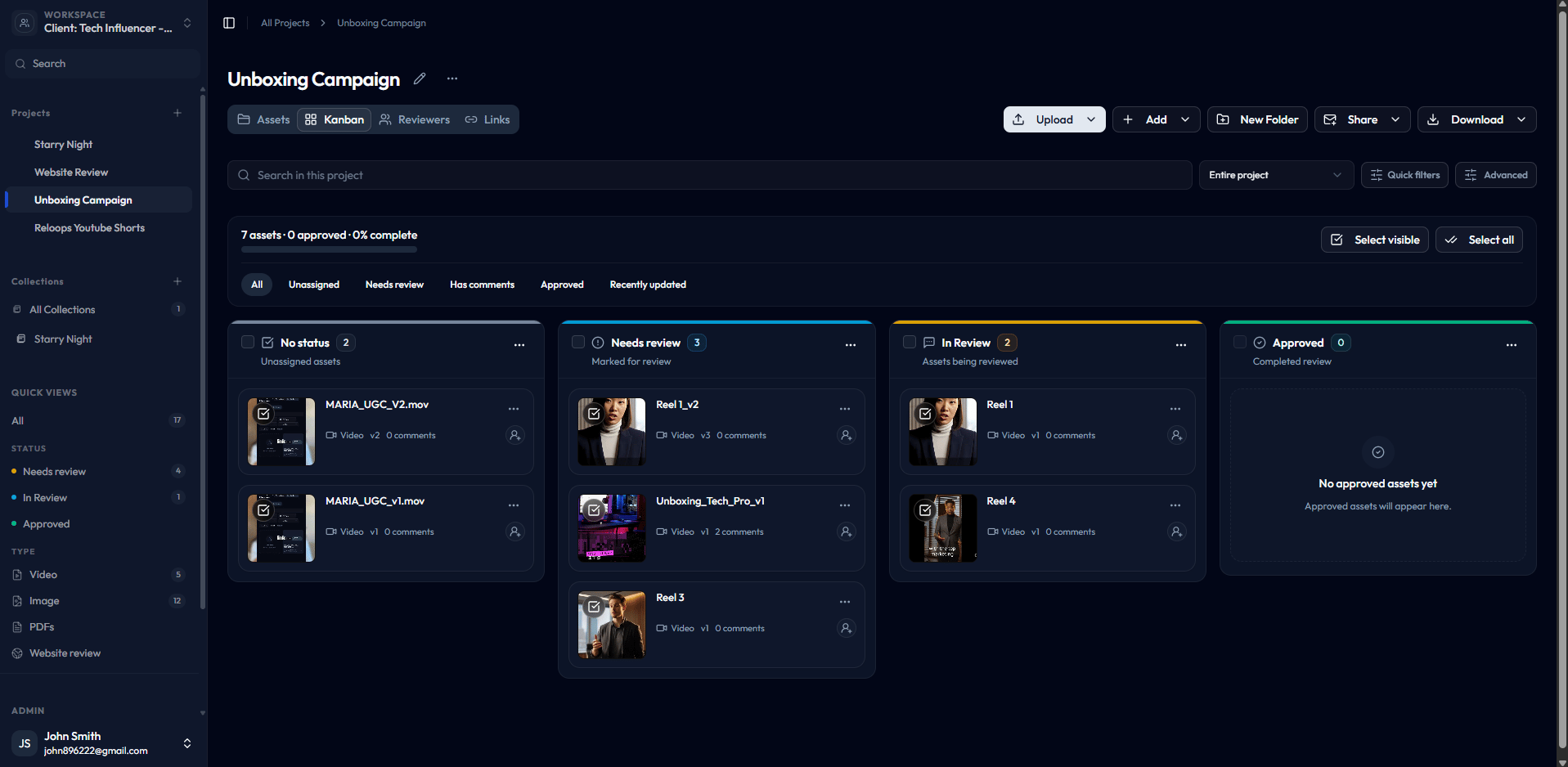
The Kanban view groups every asset in a project into columns based on its current review status. Instead of opening each file individually to check where things stand, you get a single board that shows the state of the entire project at a glance - useful for producers, editors, and reviewers who need to stay aligned without constant check-ins.
**App route:** `/workspace/:workspaceId/projects/:projectId`
## How to open the Kanban view
Inside any project, toggle from the **Files** view to the **Kanban** view using the view switcher at the top of the Assets page. The board loads immediately with your assets sorted into their current status columns.
 ## Status columns
The Kanban board has three active status columns. Assets move between columns as you update their status during the review round.
| Status | What it means | When to use it |
| ---------------- | ---------------------------------------------------------------------- | ---------------------------------------------------------------------------------------------- |
| **Needs review** | The asset is ready and is waiting for someone to review it. | Set this when you have finished preparing a file and it is ready for team or client feedback. |
| **In review** | Feedback is currently being given on this asset. | Set this when a reviewer has opened the asset and is actively leaving comments or annotations. |
| **Approved** | The current version has been accepted and requires no further changes. | Set this when all feedback has been addressed and the asset is signed off. |
Assets with **No status** do not appear in the Kanban columns. Assign a status to move an asset onto the board.
## How to update an asset's status
You can change an asset's status from three places:
* **From the Kanban board** - open the asset card and update the status field in the review interface.
* **From the Assets view** - click the status badge on any asset card and select a new status from the dropdown.
* **From asset review** - use the status dropdown in the review toolbar.
Both views stay in sync, so a change made in one place immediately reflects in the other.
## Status columns
The Kanban board has three active status columns. Assets move between columns as you update their status during the review round.
| Status | What it means | When to use it |
| ---------------- | ---------------------------------------------------------------------- | ---------------------------------------------------------------------------------------------- |
| **Needs review** | The asset is ready and is waiting for someone to review it. | Set this when you have finished preparing a file and it is ready for team or client feedback. |
| **In review** | Feedback is currently being given on this asset. | Set this when a reviewer has opened the asset and is actively leaving comments or annotations. |
| **Approved** | The current version has been accepted and requires no further changes. | Set this when all feedback has been addressed and the asset is signed off. |
Assets with **No status** do not appear in the Kanban columns. Assign a status to move an asset onto the board.
## How to update an asset's status
You can change an asset's status from three places:
* **From the Kanban board** - open the asset card and update the status field in the review interface.
* **From the Assets view** - click the status badge on any asset card and select a new status from the dropdown.
* **From asset review** - use the status dropdown in the review toolbar.
Both views stay in sync, so a change made in one place immediately reflects in the other.
 ## Why keeping statuses current matters
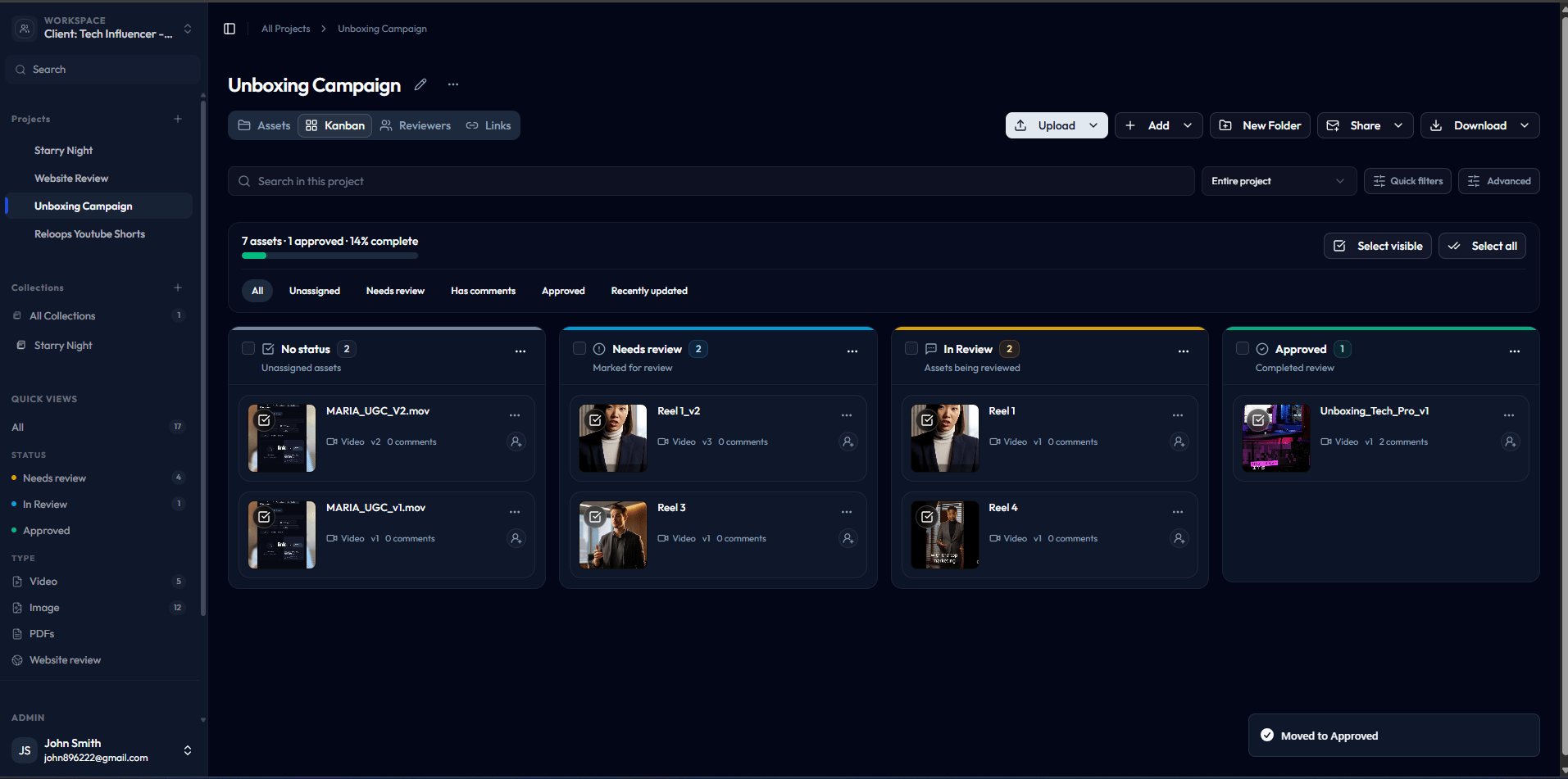
The Kanban board is only as useful as the statuses your team maintains. When everyone updates statuses as work progresses, the board becomes a reliable, real-time snapshot of the review round - no one needs to ask for a status update because the answer is already visible on the board.
Make it a habit to update an asset's status whenever you finish an action: move it to **In review** when you start giving feedback, and to **Approved** as soon as the file is signed off.
## Why keeping statuses current matters
The Kanban board is only as useful as the statuses your team maintains. When everyone updates statuses as work progresses, the board becomes a reliable, real-time snapshot of the review round - no one needs to ask for a status update because the answer is already visible on the board.
Make it a habit to update an asset's status whenever you finish an action: move it to **In review** when you start giving feedback, and to **Approved** as soon as the file is signed off.