> ## Documentation Index
> Fetch the complete documentation index at: https://docs.reloops.app/llms.txt
> Use this file to discover all available pages before exploring further.
# Creating a New Project in Reloops: Step-by-Step Guide
> Learn how to create a Reloops project to keep your assets, folders, reviewers, and share links organized together for a campaign or review round.
A project is the central container for a campaign or review round in Reloops. It holds your assets, folders, reviewers, and share links together so everyone on the team works from the same place. You can create as many projects as you need inside a workspace, and each one stays completely separate from the others.
## Create a project
Navigate to your workspace and follow these steps to create a new project.
Select the workspace you want to create the project in from the workspace switcher.
Click **Projects** in the left-hand navigation to open the Projects page.
Click the **New Project** button to open the Create New Project modal.
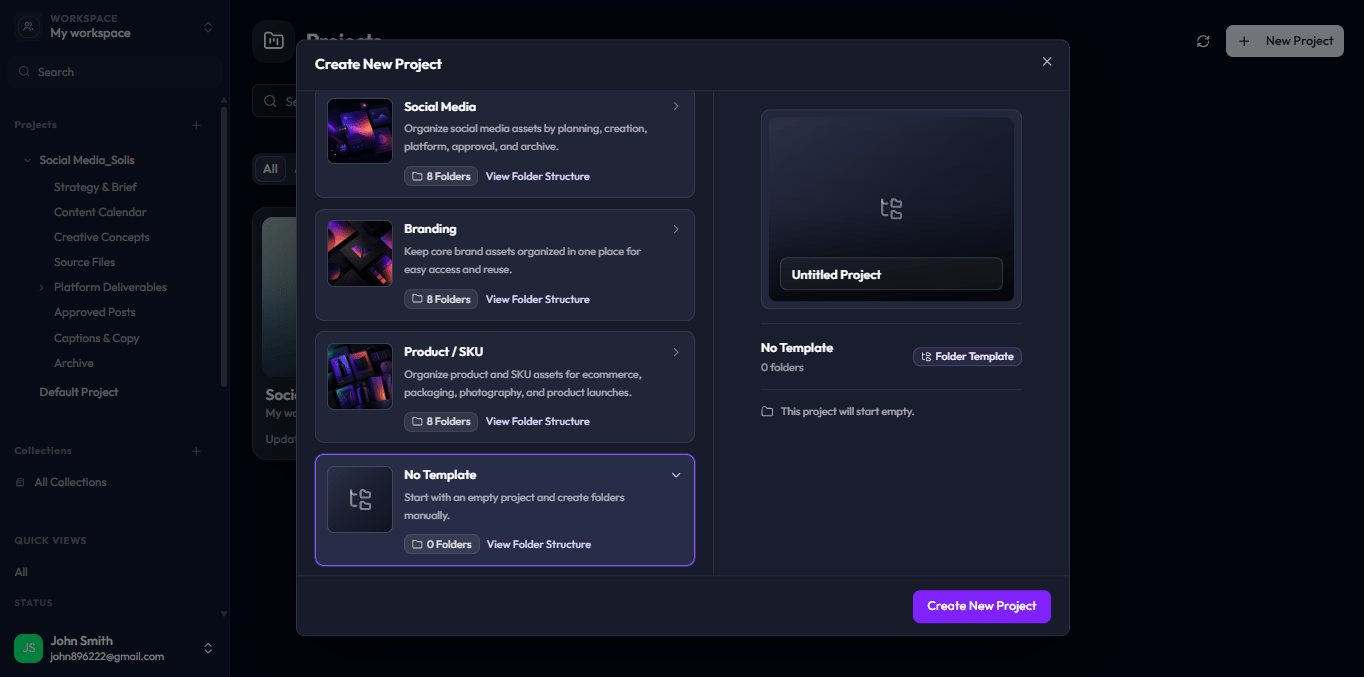
Select a template to get a pre-built folder structure, or leave the template unselected to start with an empty project.
Name your project and click **Create** to finish. Your new project opens immediately and is ready for uploads.
## Social Media Template
When you select the **Social Media** template, Reloops creates a starting folder structure designed for campaign planning. The template includes folders for source files, campaign planning materials, and platform-specific deliverables, so your team can start uploading work straight away without having to set up the structure manually.
Choose this template when you are managing a campaign that produces assets across multiple channels or output formats.
## Branding Template
Selecting the **Branding** template deploys a pre-configured architecture tailored for brand identity creation, corporate refreshes, and style guide development. This framework automatically populates specialized folders for Brand Assets, Logos, Typography, Imagery and Mockups, and Final Style Guides. It is built to keep foundational brand rules and structural design variations organized independently, ensuring internal creators and external stakeholders can audit visual systems cleanly. Use this template when launching a brand identity from scratch or managing comprehensive asset updates for a corporate identity system.
## The Product / SKU Template
Select the **Product / SKU** template when you need to organize product and SKU assets specifically tailored for e-commerce environments, packaging designs, product photography, and full-scale product launches. Like the others, this framework initializes a system of 8 pre-built folders designed to handle complex physical or digital product asset variations during high-volume review cycles.
## No Template (Blank Canvas)
If you prefer total flexibility, select the **No Template** option. This allows you to start with a completely empty project directory containing 0 pre-built folders. Choose this configuration when you want to design, name, and construct your own folder systems manually to fit highly specialized or custom operational pipelines.
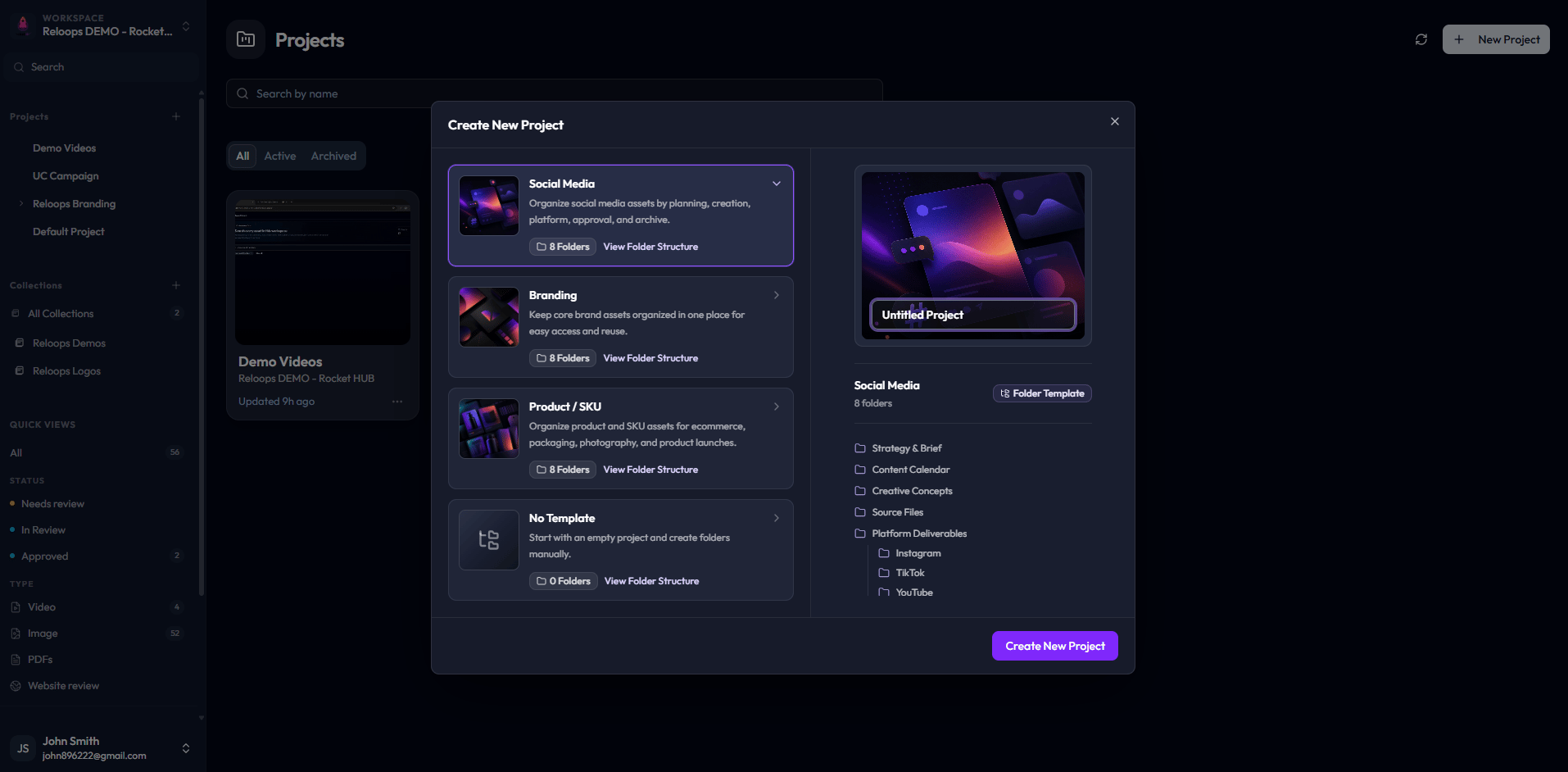 When you select the **Social Media** template, Reloops creates a starting folder structure designed for campaign planning. The template includes folders for source files, campaign planning materials, and platform-specific deliverables, so your team can start uploading work straight away without having to set up the structure manually.
Choose this template when you are managing a campaign that produces assets across multiple channels or output formats.
When you select the **Social Media** template, Reloops creates a starting folder structure designed for campaign planning. The template includes folders for source files, campaign planning materials, and platform-specific deliverables, so your team can start uploading work straight away without having to set up the structure manually.
Choose this template when you are managing a campaign that produces assets across multiple channels or output formats.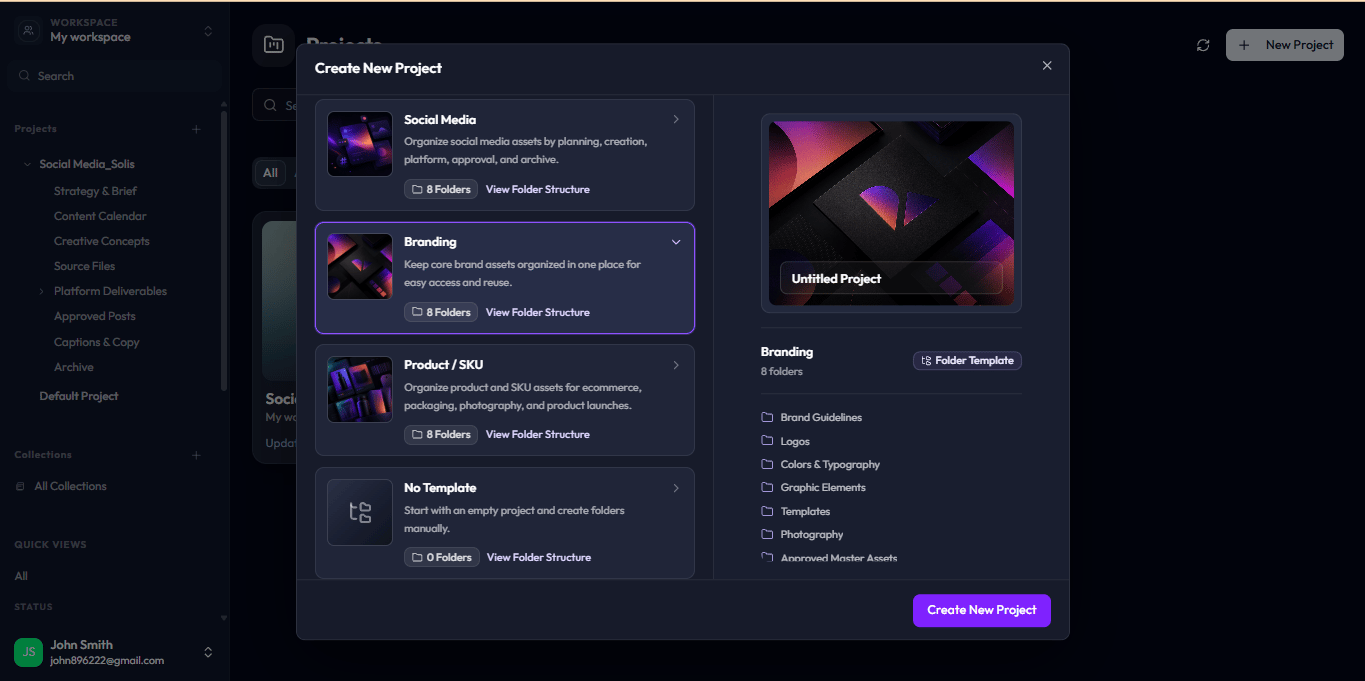 ## The Product / SKU Template
Select the **Product / SKU** template when you need to organize product and SKU assets specifically tailored for e-commerce environments, packaging designs, product photography, and full-scale product launches. Like the others, this framework initializes a system of 8 pre-built folders designed to handle complex physical or digital product asset variations during high-volume review cycles.
## The Product / SKU Template
Select the **Product / SKU** template when you need to organize product and SKU assets specifically tailored for e-commerce environments, packaging designs, product photography, and full-scale product launches. Like the others, this framework initializes a system of 8 pre-built folders designed to handle complex physical or digital product asset variations during high-volume review cycles.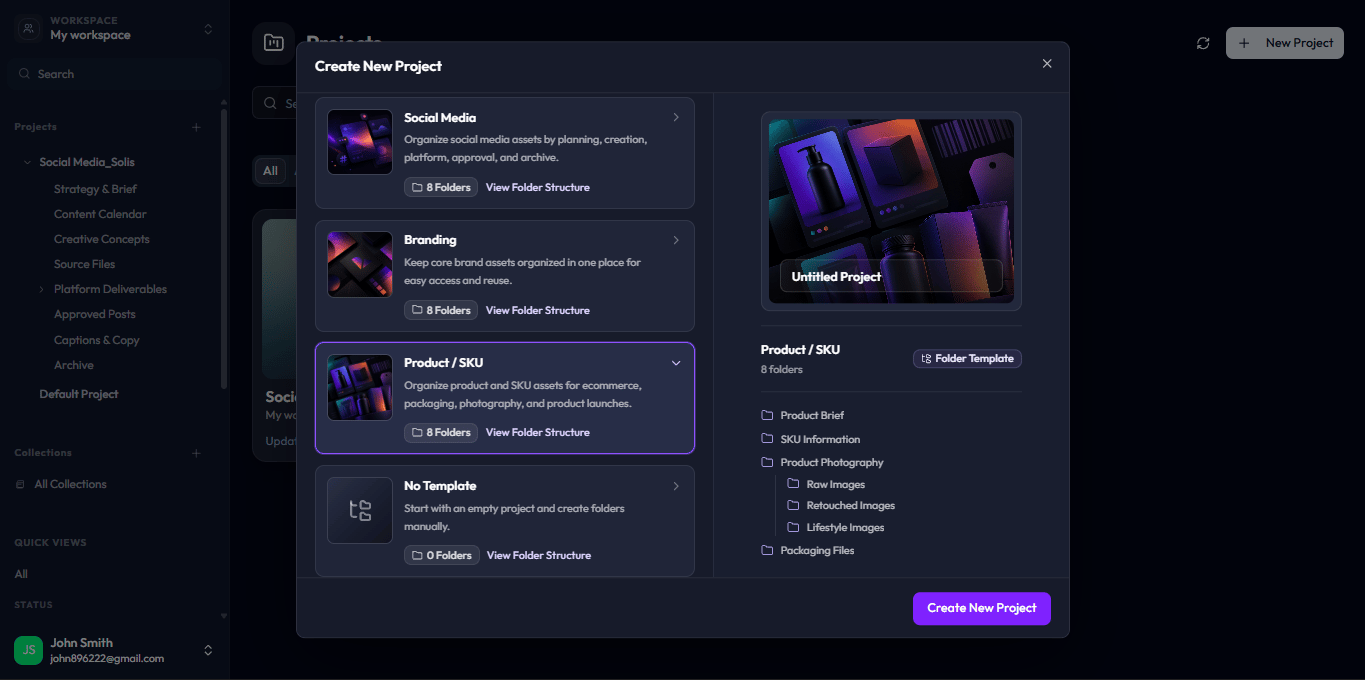 ## No Template (Blank Canvas)
If you prefer total flexibility, select the **No Template** option. This allows you to start with a completely empty project directory containing 0 pre-built folders. Choose this configuration when you want to design, name, and construct your own folder systems manually to fit highly specialized or custom operational pipelines.
## No Template (Blank Canvas)
If you prefer total flexibility, select the **No Template** option. This allows you to start with a completely empty project directory containing 0 pre-built folders. Choose this configuration when you want to design, name, and construct your own folder systems manually to fit highly specialized or custom operational pipelines.