> ## Documentation Index
> Fetch the complete documentation index at: https://docs.reloops.app/llms.txt
> Use this file to discover all available pages before exploring further.
# AI-Powered Digital Asset Search
> Search every asset across your Reloops workspace using natural language. The DAM search surface finds files by name, meaning, tags, folder path, status, and more.
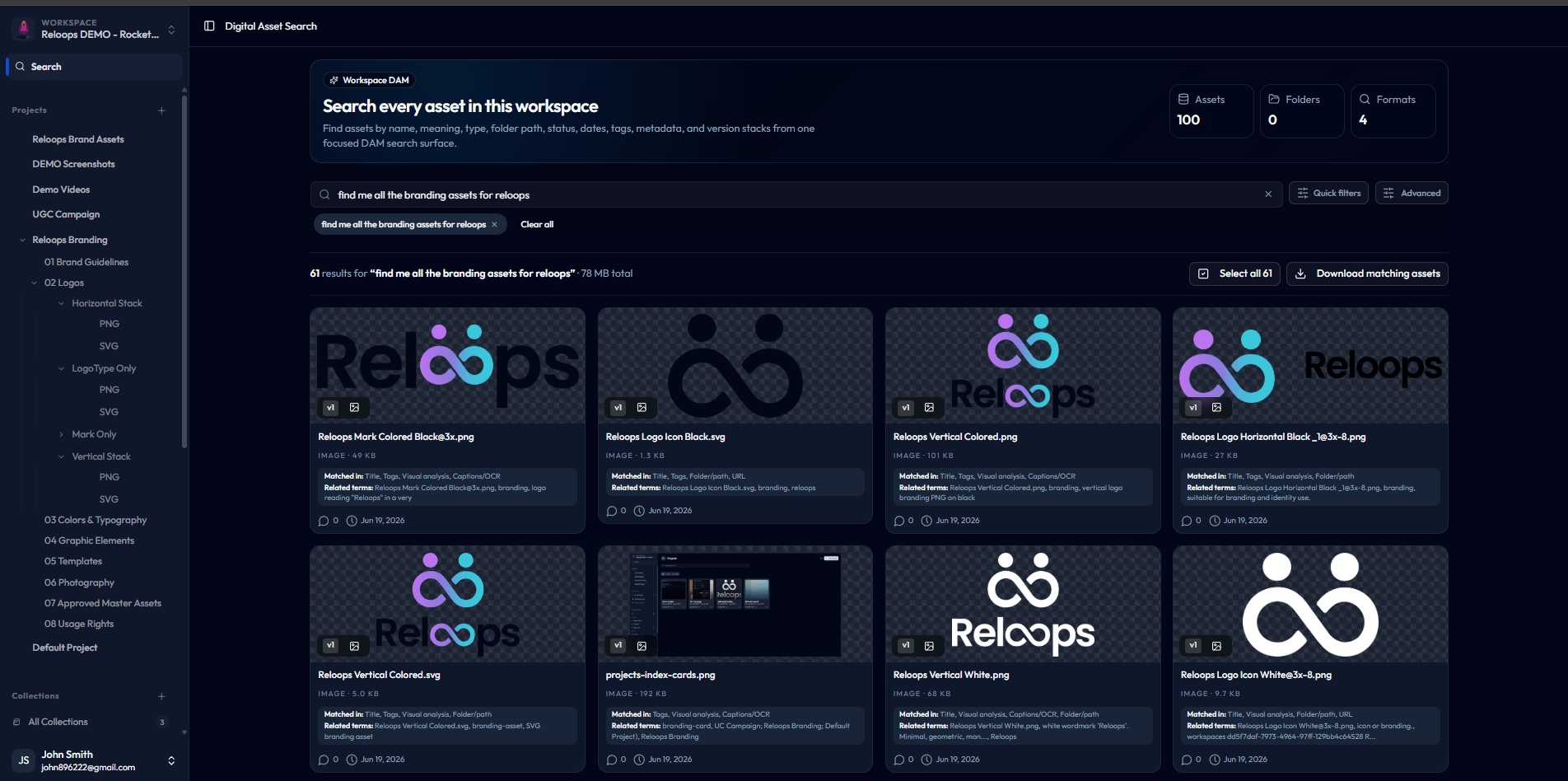
Reloops includes a workspace-wide **Digital Asset Management (DAM) search** that lets you find any file across every project, folder, and version stack from a single screen. Instead of remembering where you saved a file, just describe what you're looking for in plain English.
 ## What you can search
The DAM search indexes every asset in your workspace, not just filenames. A single query can match against:
* **Title** - original filename and any renamed versions
* **Tags** - both manual tags and AI-generated tags (see [AI Tagging](/ai/ai-tagging))
* **Visual analysis** - what the AI actually sees inside the image or video
* **Captions / OCR** - text extracted from inside images, screenshots, and PDFs
* **Folder path** - where the asset lives in your project tree
* **URL** - source links attached to the asset
* **Metadata** - status, dates, format, version stacks
Each result card shows exactly which fields matched and the related terms that triggered the match, so you can see *why* a file was returned.
## Running a search
1. Open your workspace and click **Search** in the left sidebar.
2. Type a natural-language query such as *"find me all the branding assets for reloops"* or *"approved hero videos from last month"*.
3. Results stream in across all projects, ranked by relevance.
4. Use **Quick filters** or **Advanced** to narrow by format, status, project, date, or folder.
## Bulk actions on results
Once you have a result set you can:
* **Select all** matching assets with one click
* **Download matching assets** as a single bundle
* Open any asset directly into review without leaving the search surface
This makes it easy to pull together everything for a handoff, a client deliverable, or an archive without manually hunting through folders.
## AI credits
AI Search uses **AI credits** from your workspace balance. Credits are consumed when:
* A new query is run against the semantic index
* New or updated assets are re-indexed so they become searchable by meaning
Your remaining AI credit balance is visible in **Workspace settings -> Billing & limits**. Stacking lifetime deal codes increases your monthly AI credit allowance along with seats and storage.
## Tips for better results
* Describe the *content* of the asset, not just the filename ("dark background logo with gradient" works as well as `logo_v3_final.png`).
* Combine concepts: *"approved vertical videos for UGC campaign"* will filter by status, orientation, and project context.
* Pair AI Search with [AI Tagging](/ai/ai-tagging) - the more your assets are auto-tagged, the more precise your search results become.
## What you can search
The DAM search indexes every asset in your workspace, not just filenames. A single query can match against:
* **Title** - original filename and any renamed versions
* **Tags** - both manual tags and AI-generated tags (see [AI Tagging](/ai/ai-tagging))
* **Visual analysis** - what the AI actually sees inside the image or video
* **Captions / OCR** - text extracted from inside images, screenshots, and PDFs
* **Folder path** - where the asset lives in your project tree
* **URL** - source links attached to the asset
* **Metadata** - status, dates, format, version stacks
Each result card shows exactly which fields matched and the related terms that triggered the match, so you can see *why* a file was returned.
## Running a search
1. Open your workspace and click **Search** in the left sidebar.
2. Type a natural-language query such as *"find me all the branding assets for reloops"* or *"approved hero videos from last month"*.
3. Results stream in across all projects, ranked by relevance.
4. Use **Quick filters** or **Advanced** to narrow by format, status, project, date, or folder.
## Bulk actions on results
Once you have a result set you can:
* **Select all** matching assets with one click
* **Download matching assets** as a single bundle
* Open any asset directly into review without leaving the search surface
This makes it easy to pull together everything for a handoff, a client deliverable, or an archive without manually hunting through folders.
## AI credits
AI Search uses **AI credits** from your workspace balance. Credits are consumed when:
* A new query is run against the semantic index
* New or updated assets are re-indexed so they become searchable by meaning
Your remaining AI credit balance is visible in **Workspace settings -> Billing & limits**. Stacking lifetime deal codes increases your monthly AI credit allowance along with seats and storage.
## Tips for better results
* Describe the *content* of the asset, not just the filename ("dark background logo with gradient" works as well as `logo_v3_final.png`).
* Combine concepts: *"approved vertical videos for UGC campaign"* will filter by status, orientation, and project context.
* Pair AI Search with [AI Tagging](/ai/ai-tagging) - the more your assets are auto-tagged, the more precise your search results become.